

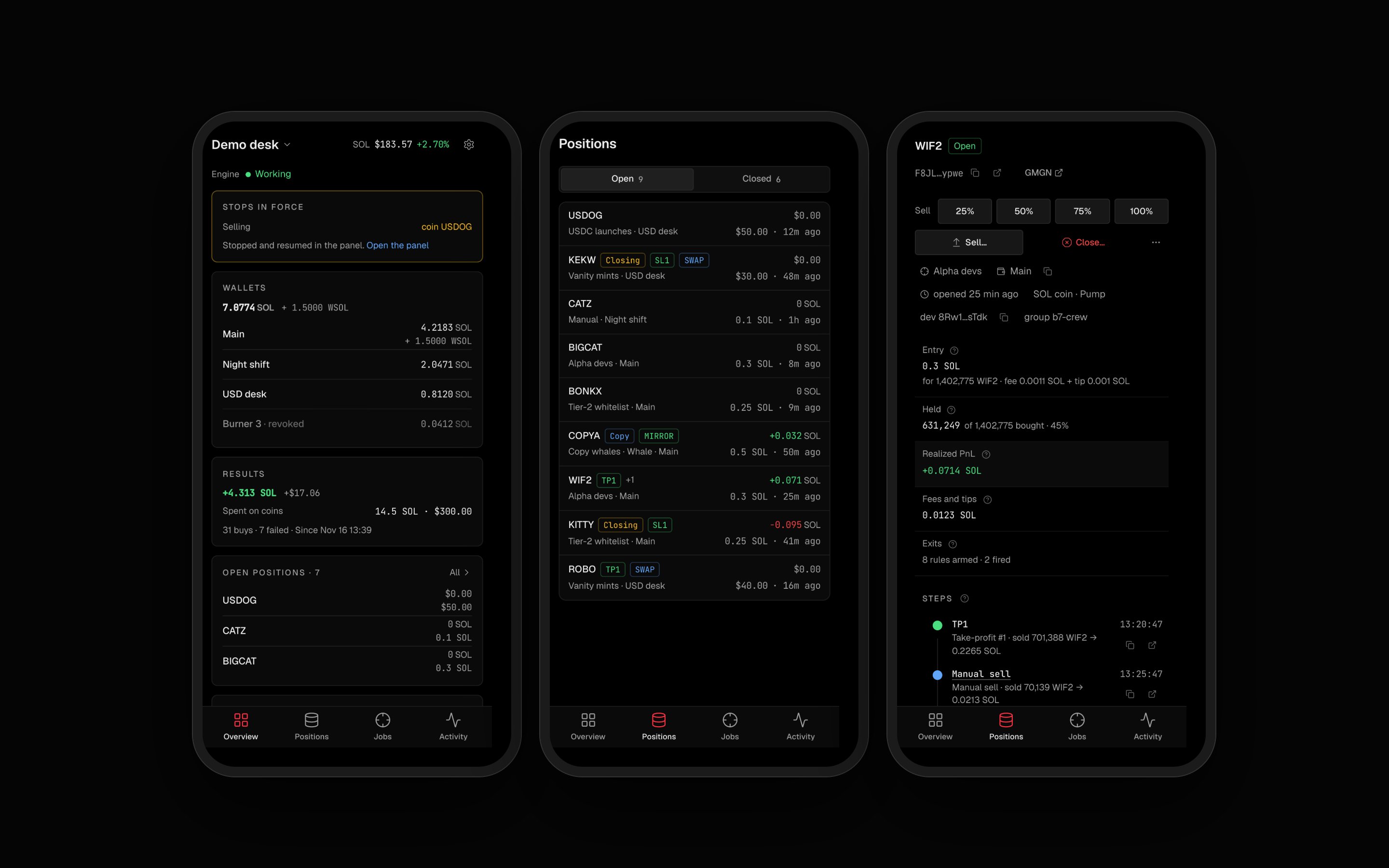
What it holds
The bar at the bottom has four sections:
Tap the account’s name at the top of Overview, or Settings (the gear), for the settings: Account (when you
belong to several accounts: pick the one to act for), Language, and Theme: Dark, Light or
Like Telegram.
What stays in the panel
Job settings, wallets, lists and the rest are in the panel. Where something is done there, the app says This is done in the panel and offers Open the panel. So are a position’s chart and its exits editor, a job’s resume and its limits’ reset, and the stops: Overview shows the stops in force, “Stopped and resumed in the panel.” Coins open in GMGN, and Activity has no Clear feed: it hides what you cleared in the panel’s Activity.Roles
The app acts as you, at most as a Trader, as the bot does: a Space Admin is a Trader here. A Trader sells, closes and switches jobs on and off. A Viewer reads everything and changes nothing, as in the panel: Jobs says Your role reads only.When it asks to open it again
The session lasts 24 hours from when you opened it. After that, or if another Telegram account was signed in on this device, the app says Open LaserCat again: close it and open it from the bot again. A Telegram account that is not let in reads No access: write to the LaserCat team.Next
The bot
Sign in and get your trades and alerts.
Positions
The full view of a position in the panel.