

Traders and Space Admins create, edit, apply and archive templates. Viewers can only view them.
Create a template
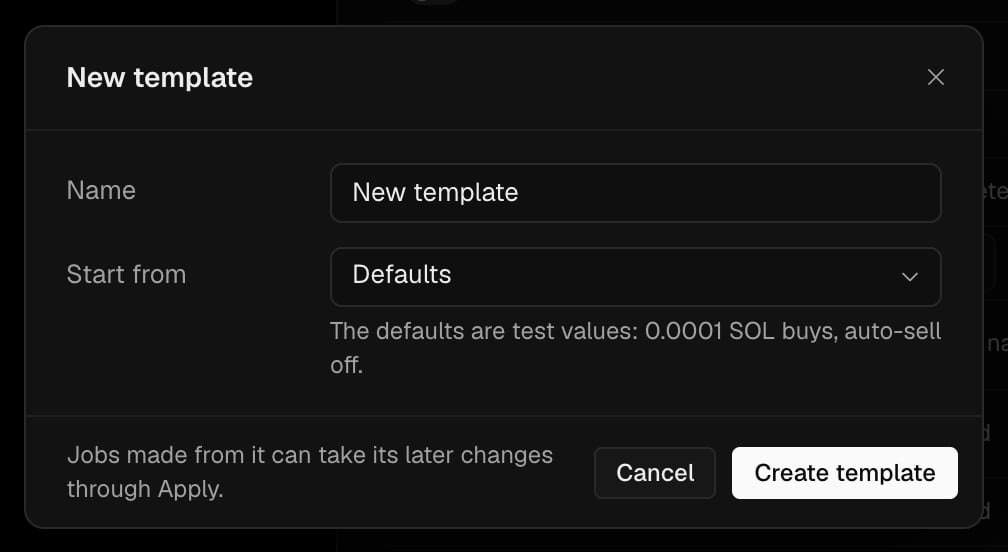
On Job templates, press New template. Enter a Name, then pick under Start from where its settings begin:- Defaults: “The defaults are test values: 0.0001 SOL buys, auto-sell off.”
- Copy of a template you have, such as Copy of Alpha.
Edit a template
A template has the job editor’s tabs, with Filters in place of Target: it has no mode, no wallet, and no job name. It saves at once, and its jobs don’t change until you apply it: “Saved · 2 linked jobs change only when you apply”. In a template, the list filters set the lists new jobs start with:- Ticker/name whitelist: “A new job made in the Tickers mode starts with these lists; other modes start without them.”
- Ticker/name blacklist and Blocked devs: “New jobs start with these lists; Apply keeps each job’s own.”
Linked jobs
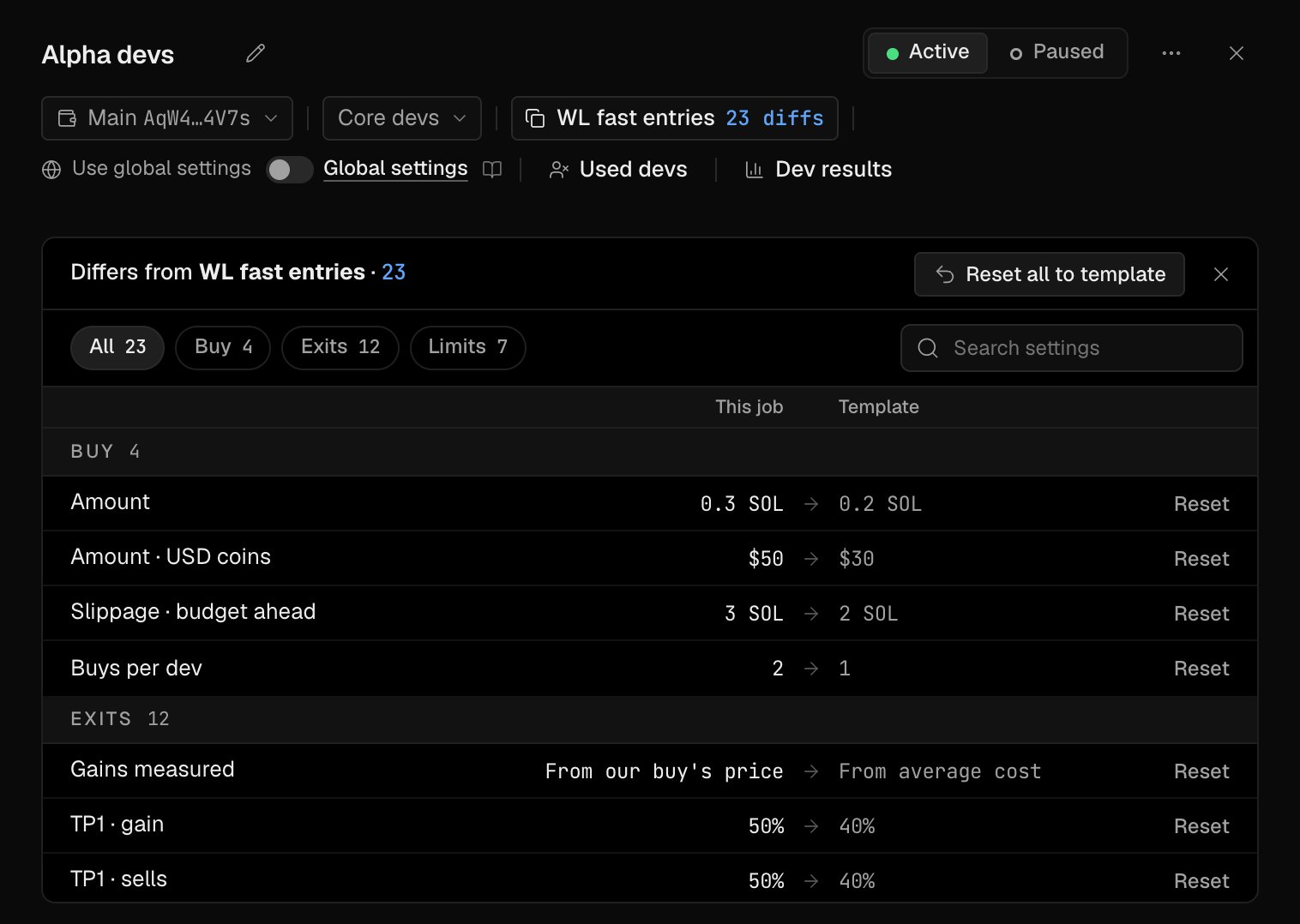
A job made from a template, picked under Template in New snipe job, is linked to it. See Create a job. The template’s header lists its jobs after Linked:, each one opening its job. A linked job’s editor shows its template’s name with “in sync” or a count of differences:- “In sync with Alpha”: “Every templated setting matches.”
- “3 settings differ from Alpha”: “Compare row by row, reset one or all.”
Apply to linked jobs
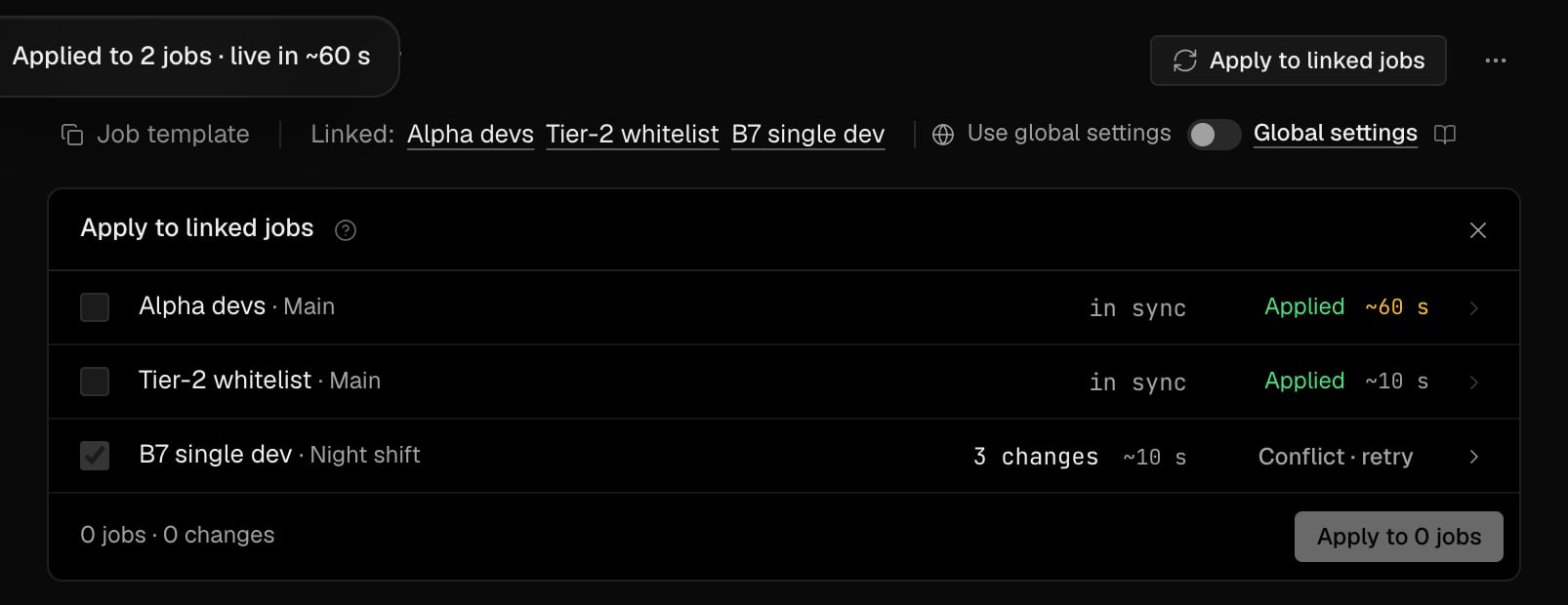
Press Apply to linked jobs in the template. “Each job gets the template’s settings as its own edit. Targets, wallet, name, ticker lists and dev blocklists stay as they are.” Each job’s state, task group and labels stay too.1
Check each job
Each linked job shows its changes, such as “4 changes” with when they apply, or “in sync”, or its errors. Open a job’s row to see each change.
2
Pick the jobs
The jobs with changes and no errors come picked. The footer sums them up, such as “2 jobs · 7 changes · live in ~60 s”.
3
Apply
Press Apply to 2 jobs. Save the template first: “apply sends the saved one”.
Archive a template
Open the template’s ⋯ menu and choose Archive…: “Jobs keep their link but can no longer take its changes, and no new job is made from it. An archived template never comes back.” In the Classic layout, tick several templates and press Archive… in the bar.Next
Create a job
Make a job from a template.
Presets
Partial settings for lists and entries.