


Sign in with Telegram
1
Click Log in with Telegram
Open the LaserCat panel at app.lasercat.gg and click Log in with Telegram. A new tab opens the LaserCat bot in Telegram.
2
Start the bot
In Telegram, start the bot (press Start if Telegram asks). The bot answers with its main screen, and its Open the panel button now holds your sign-in link.
3
Open the link
Press Open the panel. The panel shows Signing you in… while it checks the link, then opens Overview.
/start to the bot and press Open the panel. The first press makes the link, and the same button then opens it; after a new account’s first /start, the button already holds one. Such a link may ask you to confirm it first (see below). See Telegram bot.
The button keeps opening the link it holds, even once that link is used or expired. For a new link, press Refresh or send /start or /main, then press Open the panel again.
”Sign in with this link?”
The panel signs you in at once when you clicked Log in with Telegram in this browser, or when the link is for the account that last signed in here. Any other link asks first.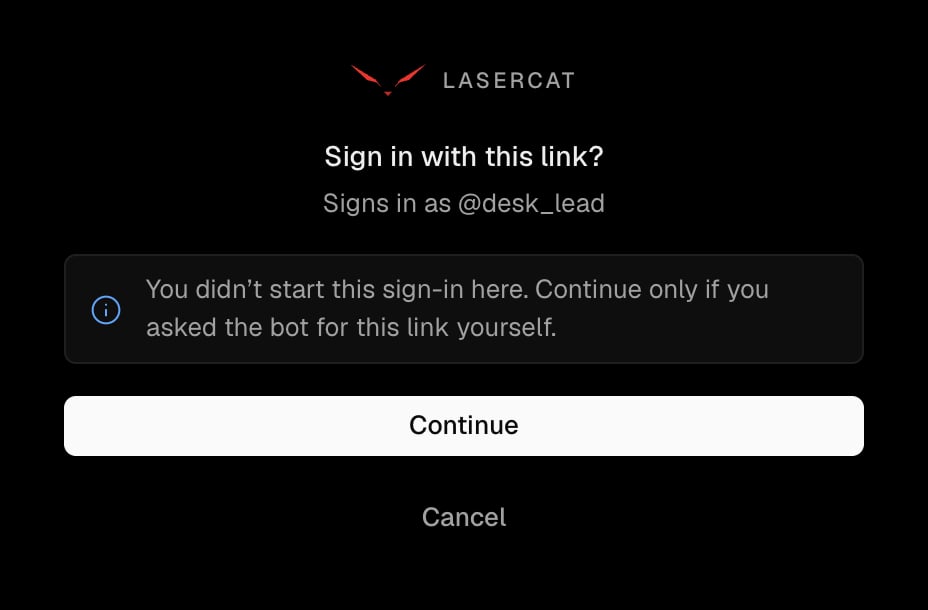
- “You didn’t start this sign-in here. Continue only if you asked the bot for this link yourself.”
- “This link signs in to a different account than the one used here before. Continue only if you asked the bot for it.”
If the link fails
Back to sign in returns to the login page.
Invite-only
LaserCat is invite-only. If your Telegram account isn’t let in, the bot answers “You are not allowed to use this bot.” To get access, write to the LaserCat team: the Telegram link at the bottom of this page.Your first sign-in
The first sign-in creates your personal owner, and you are its Space Admin. An owner is your team’s account: it holds the wallets, jobs, lists, and positions you work with. See Key concepts and Roles. A new account is welcomed once with Welcome to LaserCat. Pick the panel’s language there, then Start opens Overview, where Traders and Space Admins find First steps; Skip just closes it. See Quickstart.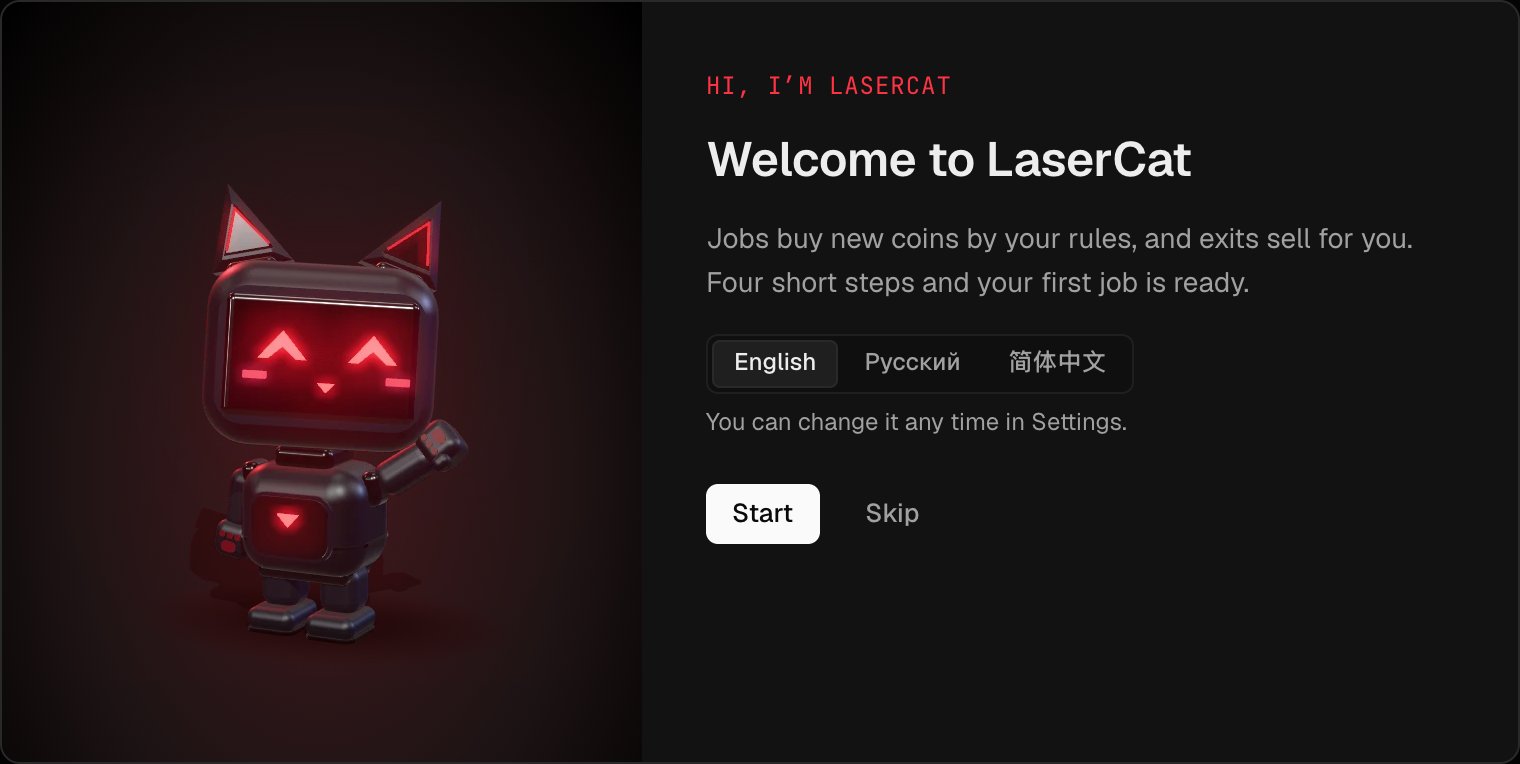
Log out
Click your name at the bottom of the sidebar, then:- Log out signs this browser out.
- Log out of all devices signs you out everywhere you’re signed in.
Next
Quickstart
Add a wallet and run your first job.
Tour of the panel
Find your way around the sidebar and the top bar.