

Traders and Space Admins. “Viewers can’t move jobs.”
The page hint
While a wallet that isn’t archived isn’t optimized, the Wallets page shows a hint: “LaserCat makes unique wallets that land faster.” and “Generate a new one and move your jobs to it.” Generate wallet opens Add a wallet at generation. Close the hint with ×. It stays hidden in this browser until another wallet that isn’t optimized appears.
Start a move
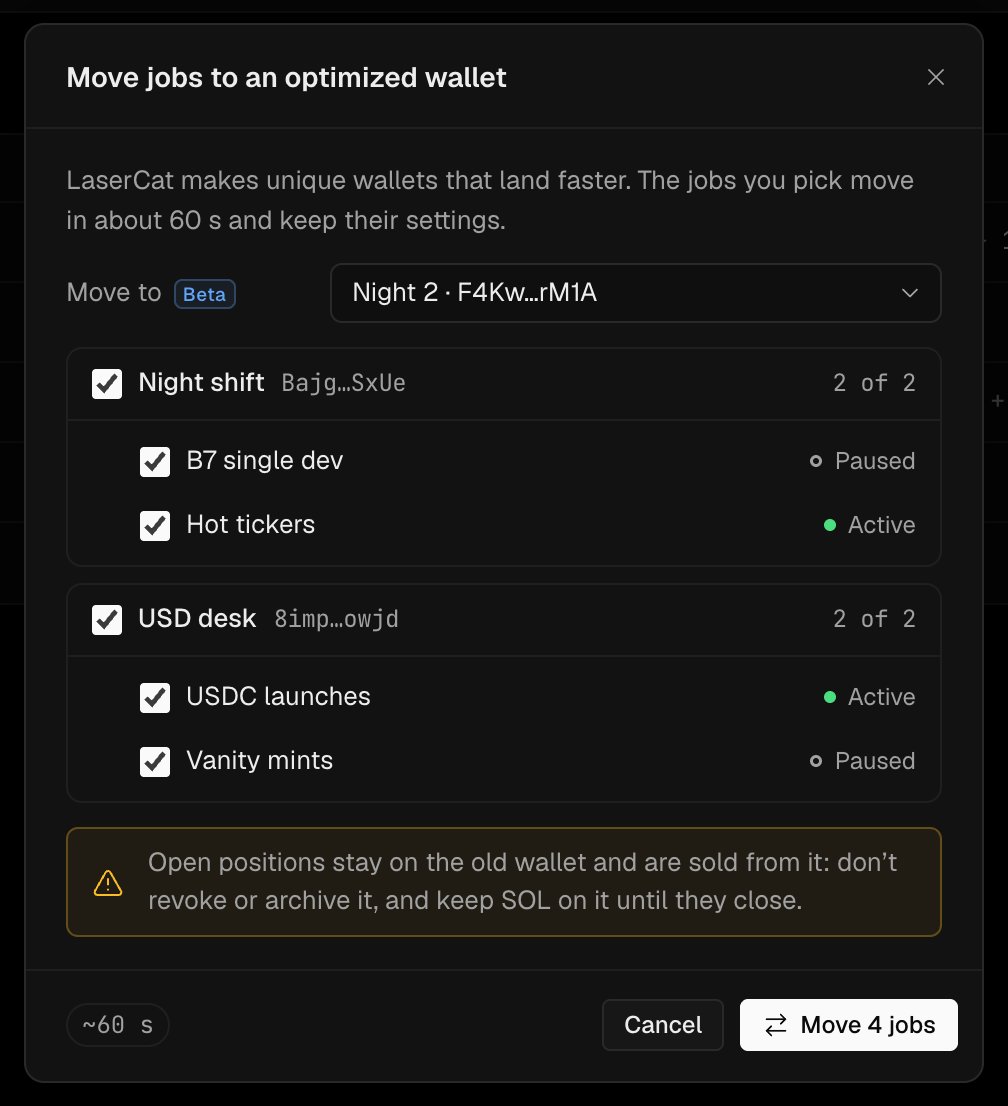
The dialog Move jobs to an optimized wallet opens two ways:- On a wallet that isn’t optimized and runs jobs, open ⋯ and choose Move jobs…. That wallet’s jobs come checked.
- Right after you generate a wallet, press Move jobs in the dialog’s last step. The new wallet comes picked.
Pick the wallet and the jobs
The dialog says: “The jobs you pick move in about 60 s and keep their settings.”1
Pick the wallet
Under Move to, pick an Optimized wallet that is ready. A wallet you just generated can be picked while it is set up; the move waits for it: “Night 3 is still being set up. The jobs can move once it’s ready.”
2
Check the jobs
The jobs are grouped by the wallet they run on. A wallet’s box checks all of its jobs, and “2 of 5” counts the checked ones.
3
Move
Press Move 5 jobs.
Results
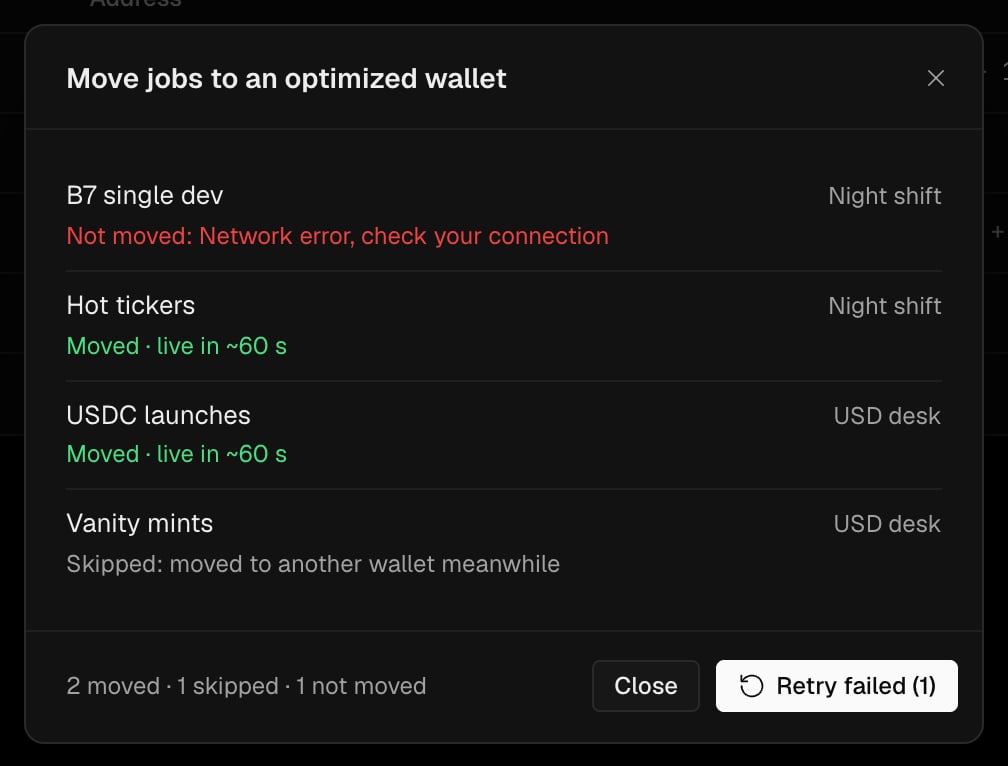
The jobs move one after another: “Moving 3 / 12…”. The dialog stays open while they move. Stop ends the run after the job being moved. Then each job shows its result:
The footer sums it up, such as “3 moved · 1 skipped · 2 not moved”. Retry failed (2) tries the failed and stopped jobs again. Each moved job shows in the Saves tray as “Wallet → Night 3”. See Saving changes.
Next
Add a wallet
Generate an optimized wallet.
Wallet states
Setting up, Ready, Revoked, and Archived.