

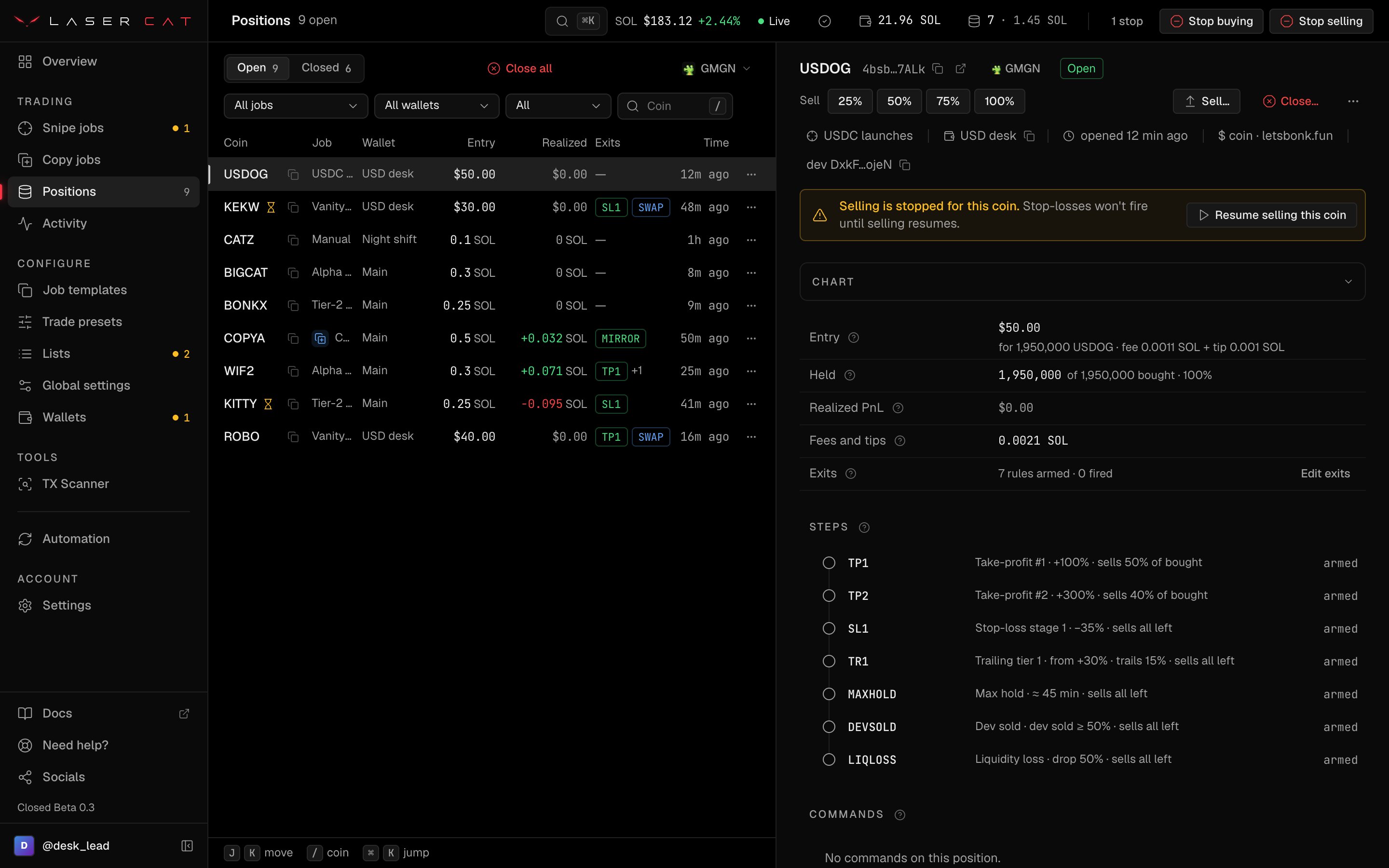
Open and Closed
The list has two tabs, each with its count:
A position that has sold everything is Closing until its account is closed, then moves to Closed. Its rent
comes back with it: not a loss.
The columns are Coin (with a copy icon for its mint), Job (Manual for a manual buy), Wallet, Entry
(what the buy spent), Realized (realized PnL), Exits (the steps that landed, such as TP1) and the time since the
buy or the close.
Filters
Under the tabs, narrow the list by job (All jobs or one job), by wallet (All wallets or one wallet) and by coin: in Coin, type a ticker or paste the coin’s mint (press/ to jump there).
Trades picks All, Snipes (snipes, Snipe LP and manual buys) or Copies. The filters apply to every tab.
Close all takes the job, the wallet and a pasted coin address; a ticker search turns it off.
When more than 1,000 positions match, the list says so and leaves the rest out: narrow it by wallet, job or coin. A dot
on a row marks a position with an exits edit you have not sent yet.
At the end of the header, the terminal picker (GMGN, Padre or Axiom) sets where a coin opens: from a row’s
menu (Open in Padre, for example) and from the coin’s name in a position’s header. It is the same choice as in
Activity and Settings → Interface, kept in this browser.
Quick sell
Trader or Space Admin.
The position’s page
In the Classic layout, a row opens the position’s own page. Its header holds Entry, Value (what the tokens held are worth now), Unrealized (with its share of what they cost), Realized and Held, then the sells, Close… and ⋯. Value is for display only: its tooltip names the coin’s price and when it was read. ‹ and › (or J and K) open the table’s next and previous positions; Esc goes back to the table, with its filters as they were. Below the header come the chart, a Summary, the money rows, steps, commands and trades; a long list shows its first 20 rows and Show all (N). The page’s address in the browser names the coin’s CA and the position, so a link to it shows which coin it is.The inspector
The title is the coin’s ticker, with badges: the state (Open, Sold out (closing account), Closed), Auto-sell off (only your commands sell) and Edited (its exits were edited). Under it are the job (or Manual buy), the wallet, when it opened, and the coin’s kind, such as SOL coin or $ coin. The coin’s name opens it in your terminal. The action row holds the sells, Close… and the ⋯ menu: Stop selling this coin (see Selling and closing), Copy position address, Open job and Scan entry. A warning shows while selling is stopped for the position: stop-losses won’t fire until selling resumes.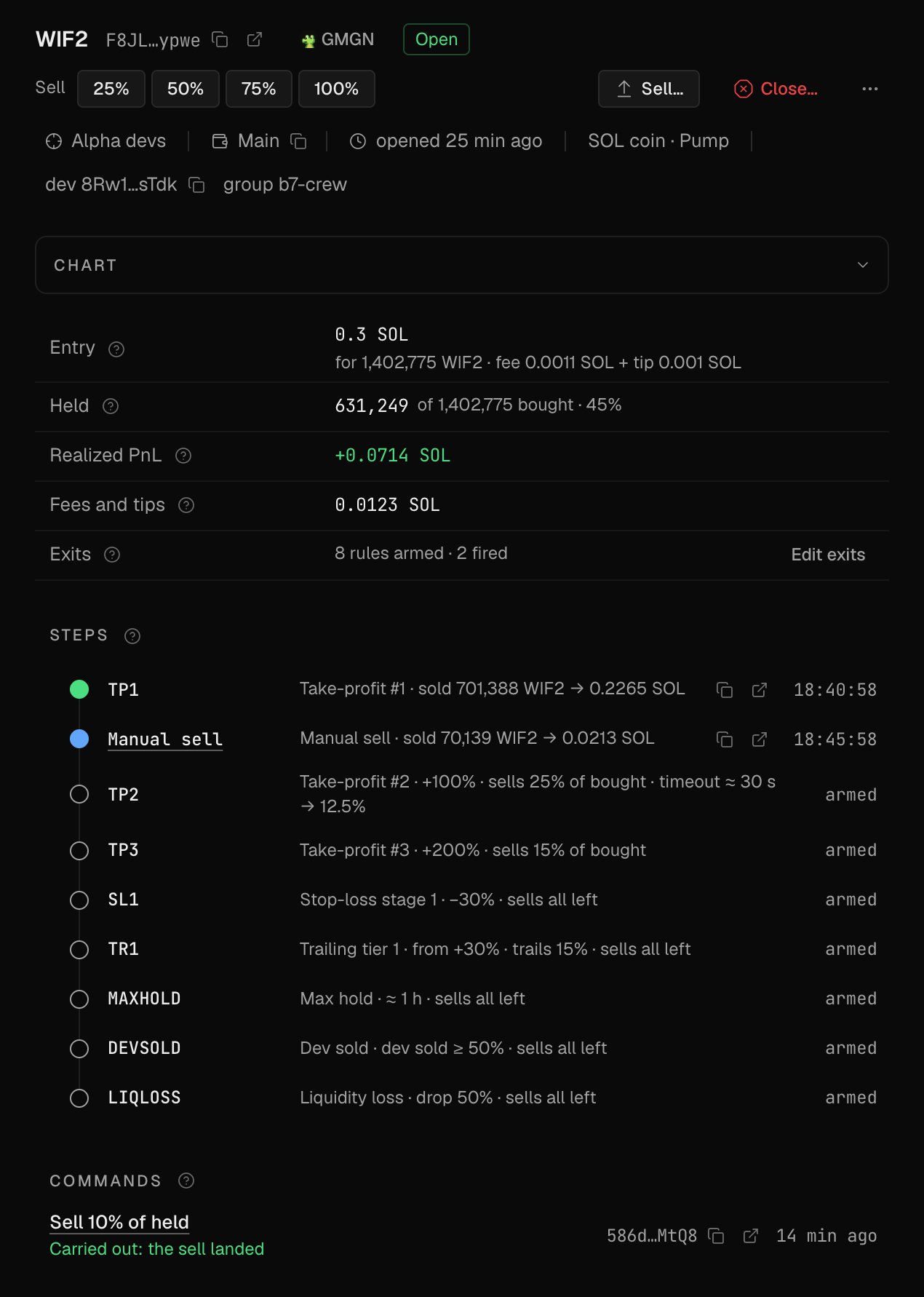
Money rows
A PnL row may add incl. failed sends and cancels (what failed transactions cost, already counted) or
rent held until the close on a closing position. A closing position whose quote is still going back to SOL reads
Selling the quote back: not a failed close.
SOL and dollar positions
A position keeps its money in its own currency: SOL, or $ for a dollar position (a coin quoted in USDC, USDT or USD1, or bought with USDC). A dollar position’s fees and tips are paid in SOL and counted in the SOL book, never in its $ PnL. A $ coin, bought with SOL is a SOL position. The SOL book and the $ book are never added together.A copy job’s position
A copy job’s position has a Copy block: the Target it copied, how much of its holding the target has sold since (Target sold), the Add-ons that landed, and how far the copy landed Behind the target, in slots. An add-on buys more of the coin when the target buys more. See Copy jobs.Exits
Each position keeps its own copy of the exits, taken from the job when it bought. The Exits row says how many rules are armed and how many fired. Edit exits opens Exits for this position: auto-sell, take-profit, stop-loss and trailing, and the other rules; rules the editor does not open go back unchanged. A take-profit rung sells a share of the amount bought, unless the position’s settings had it sell a share of what remains: the plan then says so on the rung, its timeout and the migration sale. Highest rung only (a jump past several rungs at once sells the highest one’s share alone) shows as the settings had it, read-only: On · kept as it is. Editing is for a Trader or Space Admin, and an edit changes this position only. Send edit asks you to confirm; the edit applies in about 10 s, and steps that already landed stay landed. You can send at most 8 edits of one position in 10 seconds. What each rule does: Exits.Steps
Steps lists the steps that ran, in chain order, then the rules still armed. A step that ran shows what it sold and got, with its transaction; an armed rule reads armed, or auto-sell off.
A step that failed on chain reads failed on chain: nothing sold (failure n on chain when it failed again).
Commands and trades
Commands lists the commands sent on the position, from the panel or the bot, and what came of them, such as Carried out: the sell landed or Rejected: with the reason. A sell, close or Sell initials that failed or was not carried out offers Send again. Not carried out lists why, each reason once. Trades lists the buys and sells in chain order: Time, Side (Buy, Sell, Top-up, Written off, Sold elsewhere, Swap back), Gave, Got and Transaction, which opens in Solscan.Next
Selling and closing
Sell a share, take your initials back, or close a position.
Exits
What each exit rule does and how a job’s exits are set.
Activity
What your jobs bought and skipped, and why.
Stops
Stop buying or selling for the owner, a wallet or a coin.