

Traders and Space Admins edit entries. Viewers can only view them.
Find entries
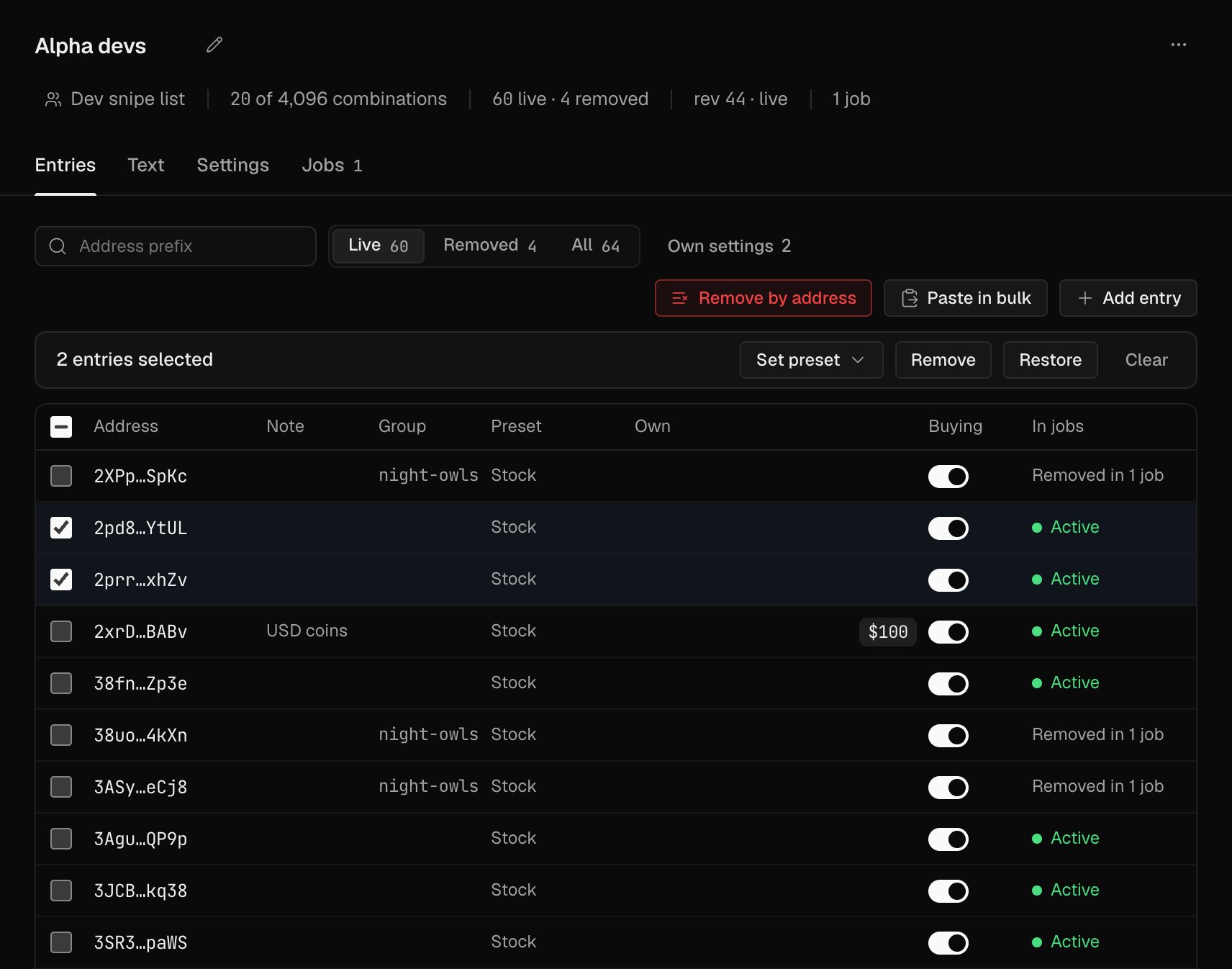
Search by the start of an address or a ticker (Address prefix, Ticker prefix). Filter by Live, Removed or All; each shows its count. On a dev snipe list, Own settings shows “Only the entries with their own settings”, with their count. The tab shows 100 entries at a time, with Load more. A dev snipe list shows these columns:
Ticker lists and dev blocklists show the key, the Note and a removed badge. On a phone, each row takes two lines: the key and its state, then what the entry sets of its own.
Buying switch
Each row of a dev snipe list has a Buying switch: “This dev’s own buy switch, over every preset. On: bought as the presets and the job say. Off: matched, never bought.” It saves at once, as a revision of its own. A dev switched off reads Inactive under In jobs. When the entry’s preset or the list preset switches buying off, the switch shows off with a tip such as “Off in its preset Quick flip: matched, never bought. On here buys this dev anyway.”Add entry
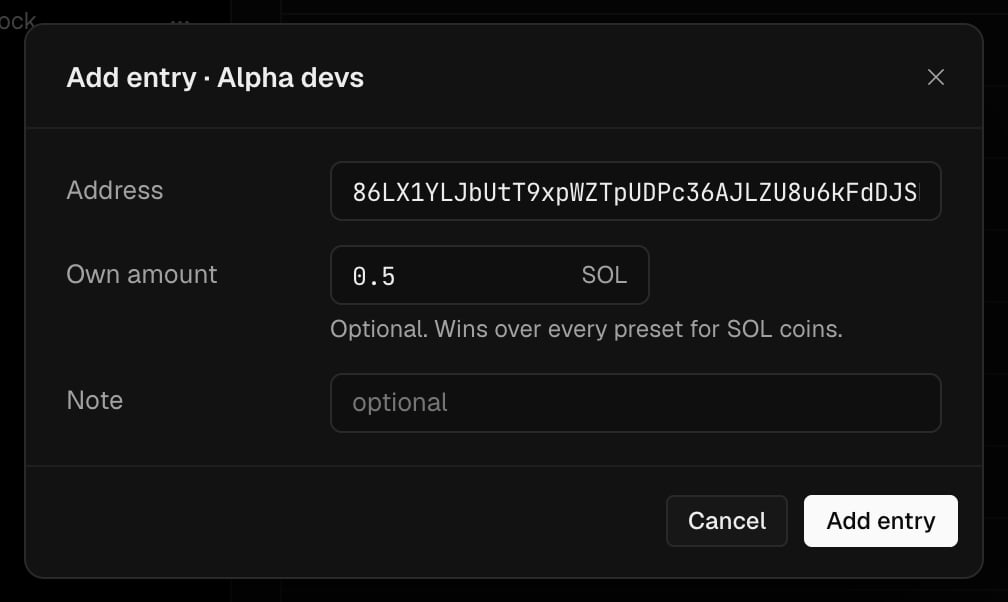
Press Add entry and enter the Address (dev snipe lists and dev blocklists) or the Ticker (ticker lists; letters are upper-cased). A dev snipe list also takes an Own amount in SOL: “Optional. Wins over every preset for SOL coins.” Any entry can take a Note of up to 256 characters, for the panel only. Press Add entry.- If the entry is live already, the dialog says “Already in the list.” and offers Open entry.
- If the entry was removed, it comes back with its settings, its own settings included. An own amount or a note you type in the dialog replaces the old one; left empty, the old one stays.
A dev’s own settings
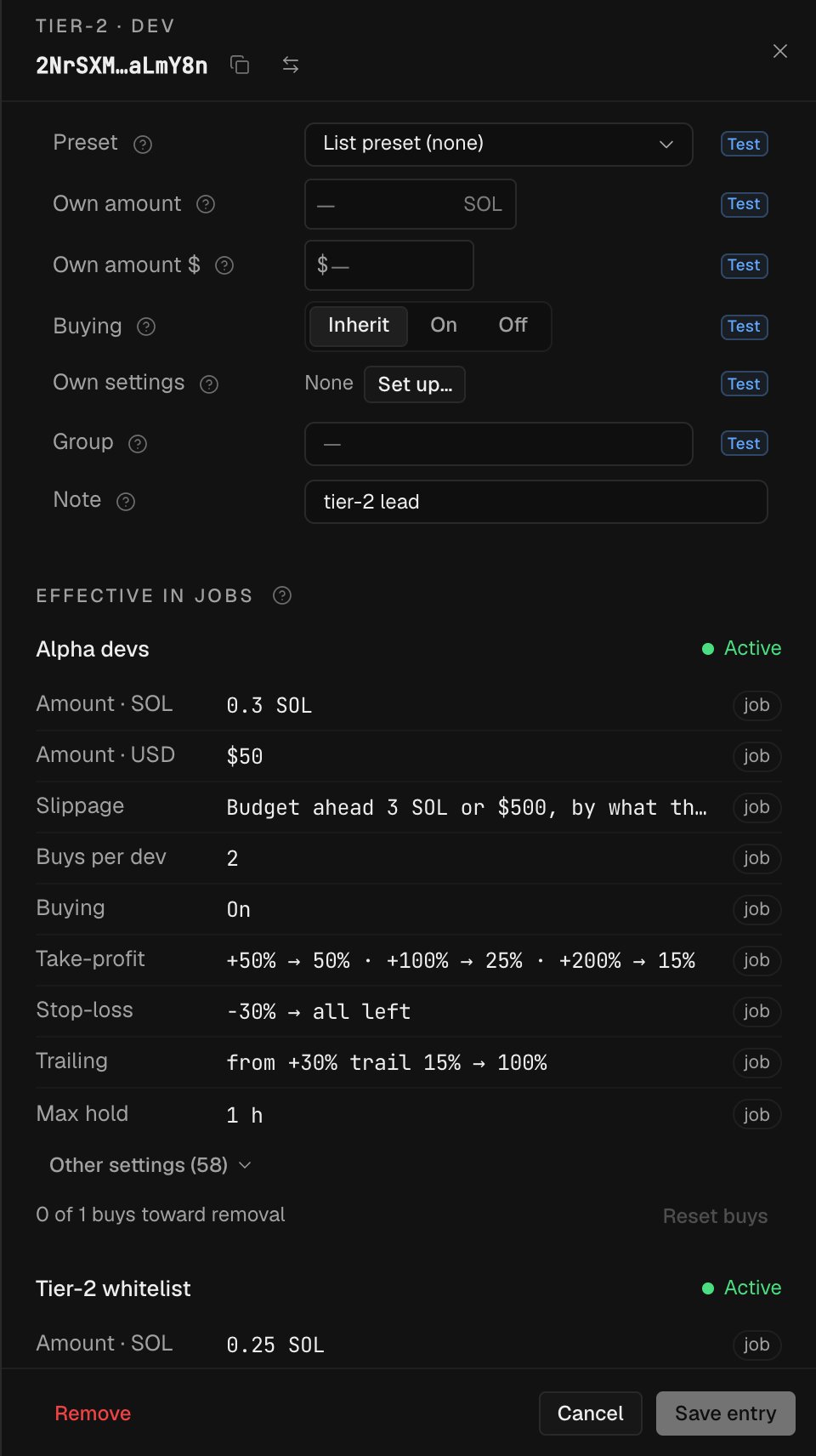
Click an entry to open its panel. An entry of a dev snipe list has these settings; entries of ticker lists and dev blocklists have only a Note. Every setting but Note carries a Test badge: LaserCat is still testing them on live trading.
Press Save entry. A group change is structural, about 60 s: it re-counts caps. So is a preset with another buys-per-dev cap (“Another preset cap: structural (~60 s), re-counts this dev’s buys.”), and an own Buys per dev. If a group’s devs hold different caps, the panel warns: “This group’s devs have different buy caps: one person’s wallets would count against two caps.”
A saved entry keeps its address (or ticker) and its list. Change address or list removes it and adds a new entry with the same settings, its own settings included.
Own settings
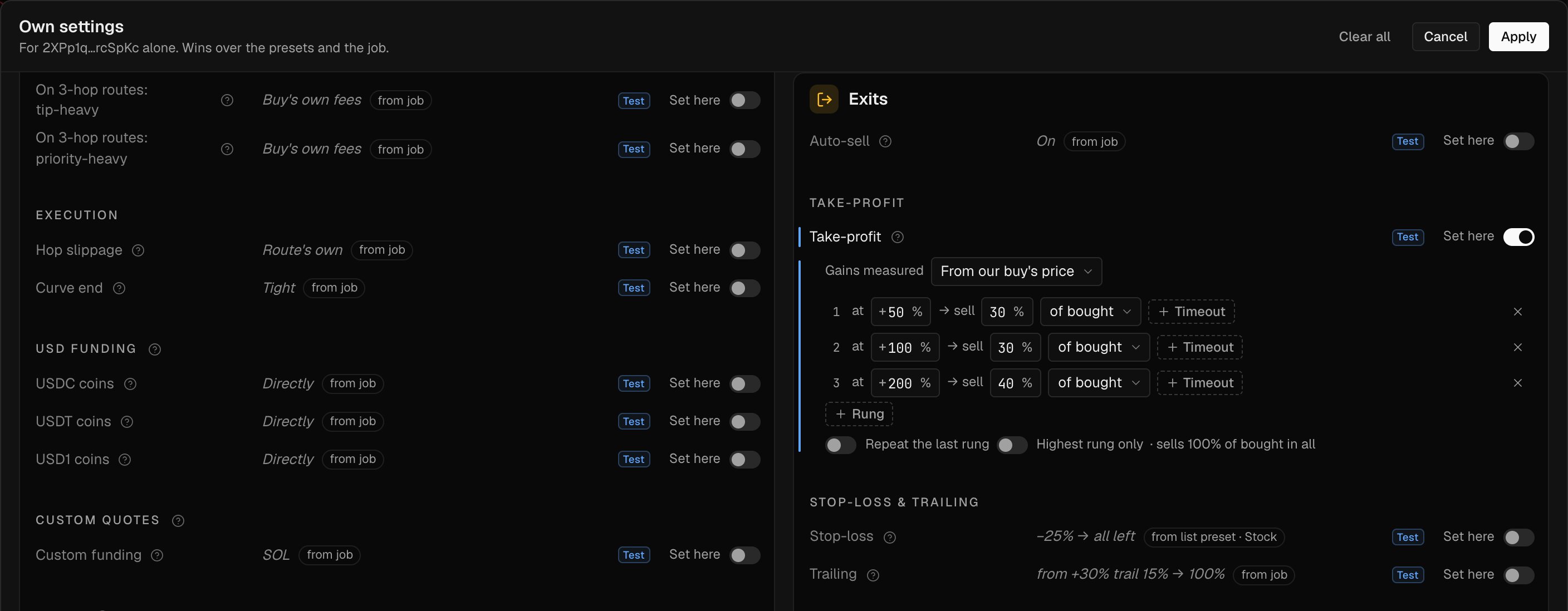
Set up… opens the entry’s own settings in a window, laid out like a preset: Buy, Dev rules and Top-up beside Sell, Exits and Filters. Each setting has its Set here switch and works as in a preset: see Preset settings.- A setting not set here shows what this dev gets now and from which layer: “Not set for this entry: what it gets now, and from which layer, as the entry is saved.” Where the jobs that buy from the list give different values, it reads differs by job, with each job’s value in its tip.
- Clear all turns every setting off. Apply keeps them for the entry: “Goes out when you save the entry.” Then press Save entry.
- “Open positions keep what they bought with: to change one position’s exits, open that position.” See Positions.
Effective in jobs
Under the settings, Effective in jobs shows “What this dev gets in each job that buys from the list.” The layers go from the job to the list preset, the entry preset and the entry’s own, and each later one wins for what it sets. Each job lists Amount · SOL, Amount · USD, Slippage, Buys per dev, Buying, Take-profit, Stop-loss, Trailing and Max hold (and a copy’s own slippage, custom quotes or the priority-heavy copy where a layer sets them). Other settings lists the rest, tab by tab. Each value names the layer it comes from: job, list preset or entry preset (with the preset’s name), entry’s own, or Global where the job follows your global settings. It shows the saved entry, so save to see your changes there. If the layers don’t fit together, the job says “This combination is invalid: the dev is never bought.” Each job also shows the dev’s state in that job, such as Active, Banned or Removed, and its buys toward removal. Restore (or Restore and reset buys) and Reset buys act in that job only. See Limits and dev rules. When no job buys from the list, the panel says “No job buys from this list yet: add it to a whitelist job’s dev snipe lists.”Setting combinations
“Each different mix of a job, presets and an entry’s own settings is one combination. Entries with equal settings share one.” A dev snipe list’s header shows how many the owner uses, such as “312 of 4,096 combinations”. Near the limit, the Entries tab warns: “Past the limit a save is refused: use a preset for settings many devs share.”Set preset in bulk
Tick entries; the header box ticks all the entries shown. The bar shows “2 entries selected” with Set preset (dev snipe lists), Remove, Restore and Clear. Set preset offers No own preset, which puts the entries back on the list preset, and every active preset, with its cap beside it (“cap 2”). Removed entries and keys no longer in the list are skipped. The whole change is one revision of the list.Remove by address
Remove by address (on a ticker list, Remove by ticker) takes many entries out at once. On a list’s Entries tab it works on that list alone. The same button in the Lists page’s header looks in every list of the kind: “Finds them in every list of this kind; you choose which lists to take them out of.”1
Paste
Paste the addresses, one a line. A line from an export, such as
address,0.5, reads its address. The window counts the lines, the repeats and the lines with an error, which are skipped. Press Find in lists.2
Pick the lists
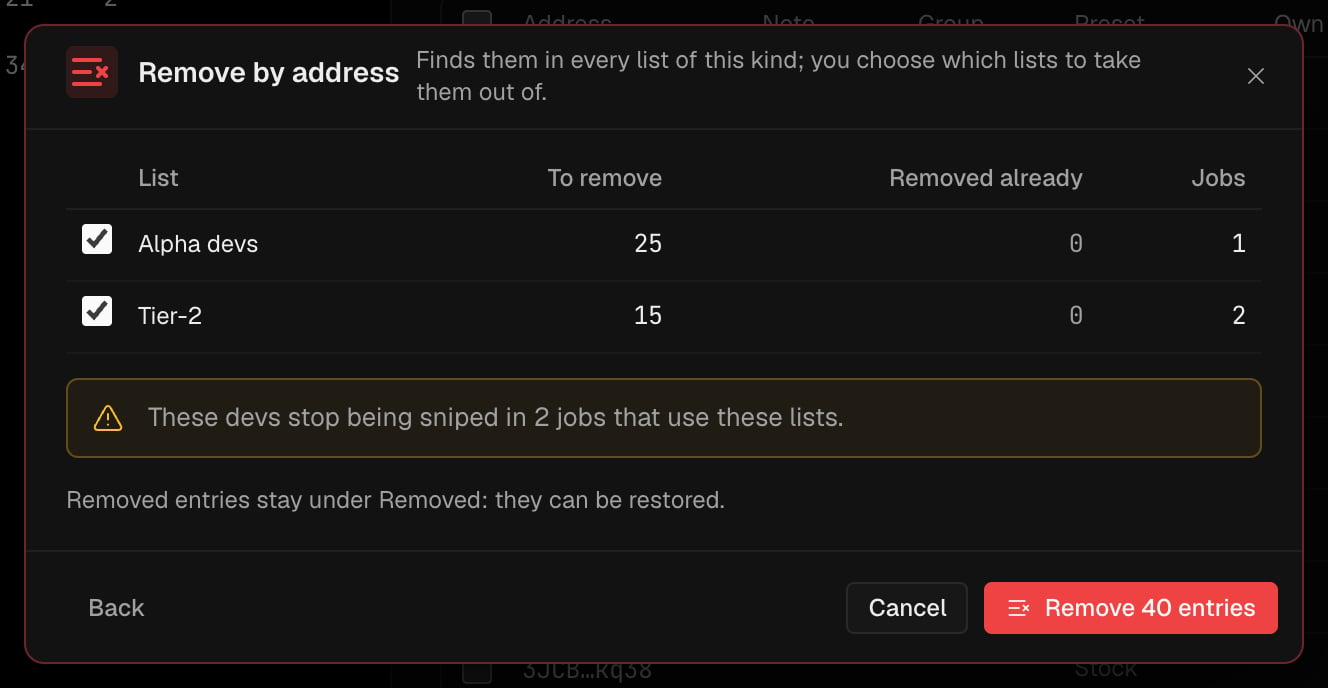
Each list that holds some of them shows under List, To remove, Removed already and Jobs, ticked. Untick a list to leave it alone; a blocked list shows but can’t be ticked. A line says what this does, such as “These devs stop being sniped in 2 jobs that use these lists.” On dev blocklists it says the devs “can be bought again”.
3
Remove
Press Remove 40 entries. It runs list by list; Stop halts it between parts. The end reads like “Removed 40 entries from 2 lists”.
Live and removed entries
Remove takes an entry out of the list but keeps it: it moves under Removed, with a removed badge. “Removed devs leave every job that uses this list. Restore brings them back with their amounts.” Restore (in the entry panel, Restore entry) puts the entry back. Only live entries count toward the list’s size, and a list holds at most 100,000 of them.Next
Import and export
Paste many entries, or replace the whole list.
Presets
What a list preset and an entry preset set.