

Kinds of lists
An entry of a dev snipe list can carry its own preset, amounts, buying switch, dev group and own settings, and the list can carry a list preset. See List entries and Presets.
How a job uses lists
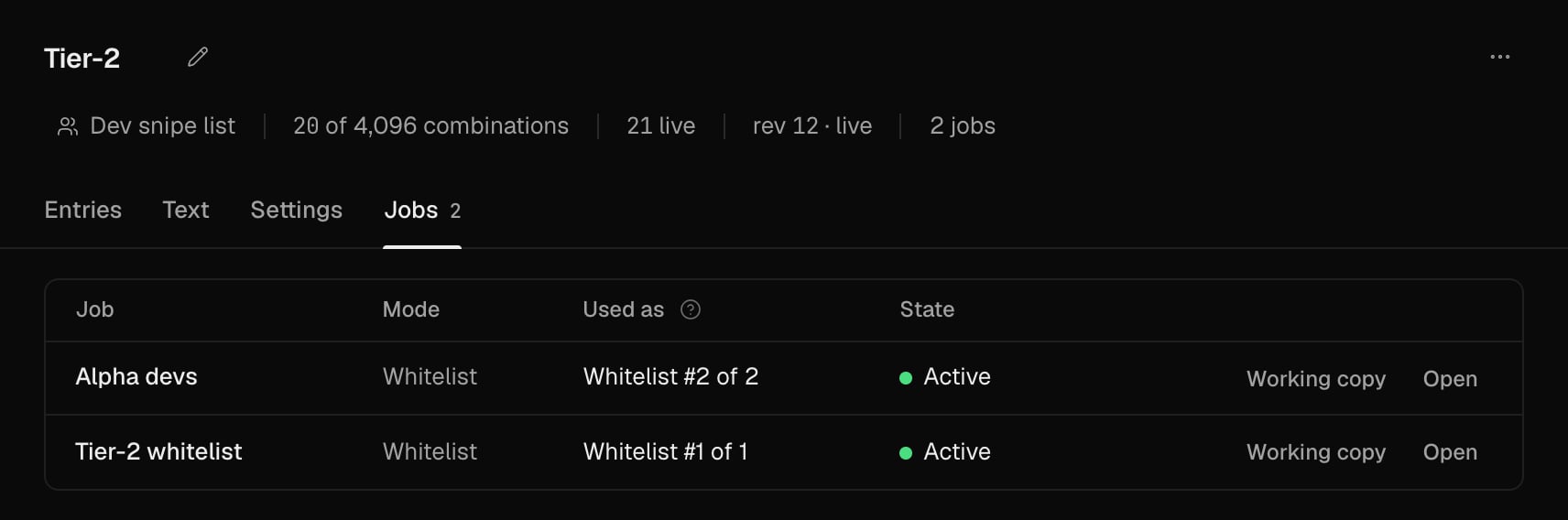
You attach lists in the job editor’s Target tab:- Dev snipe lists, for a job in Whitelist mode: “Order matters: the first list that holds a dev decides its settings and dev group.” Add list adds one. Add all adds every dev snipe list there is now, in this order; “A list made later is not added by itself.”
- Ticker/name whitelist, a filter of every mode: “Buys only coins whose ticker or name matches these ticker lists.” In Tickers mode it is what the job buys; in another mode it narrows that mode’s coins.
- Ticker/name blacklist, a filter of every mode: it skips coins whose ticker or name matches one of these lists, “even one the Ticker/name whitelist lets in.”
- Blocked devs, a filter of every mode: launches by devs on these blocklists are skipped, even a dev or coin the job names itself.
Create a list
Traders and Space Admins create and edit lists. Viewers can only view and export them.
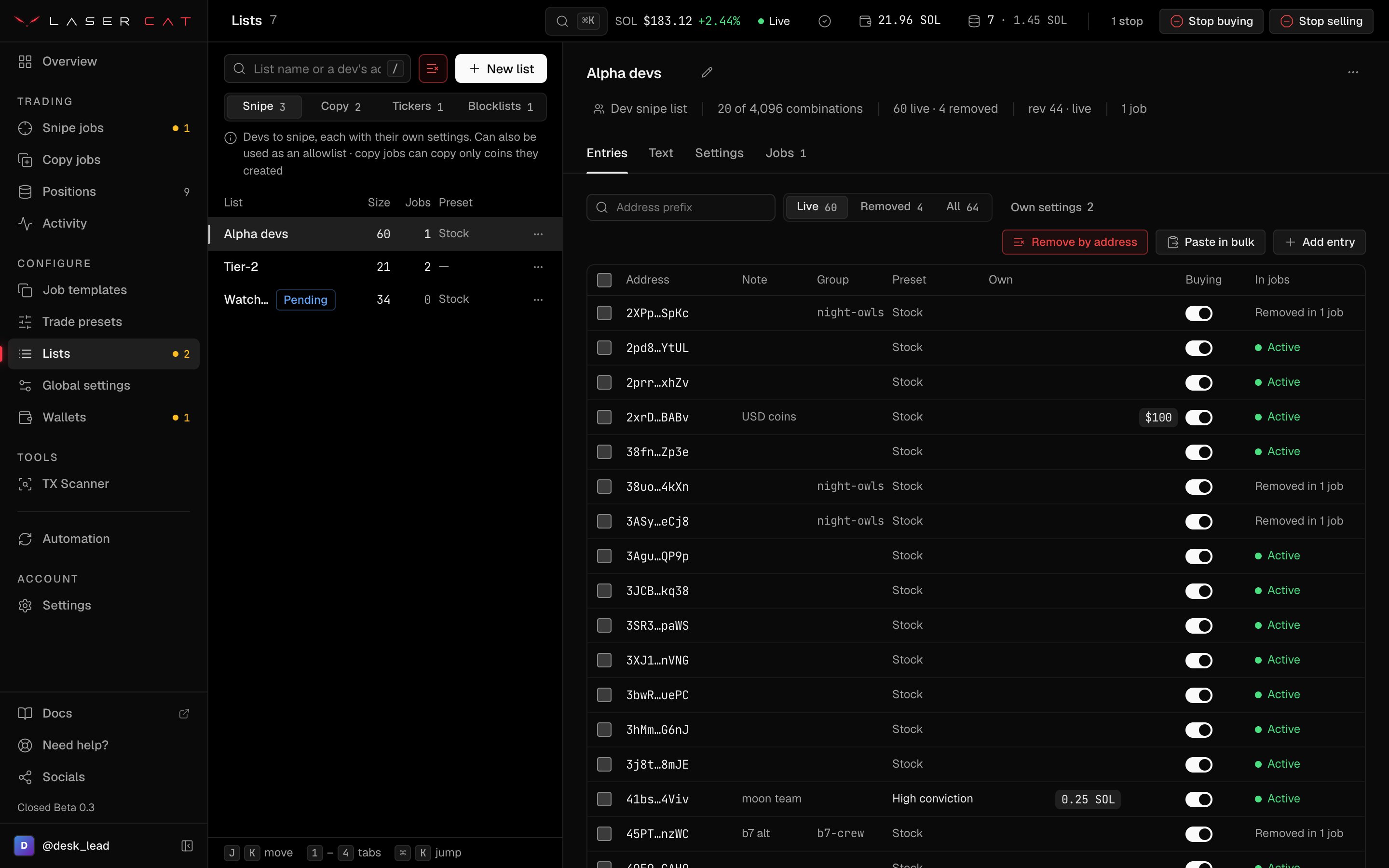
Find a dev in your lists
The search box at the top (“List name or a dev’s address”) filters lists by name. Paste a dev’s whole address instead, and it finds the lists that hold this dev: “7GCihg…f9QaZx is in 3 lists”. The kind filter counts them by kind, and a list the dev was removed from shows a removed badge. Open one, and its entries open on that dev. A dev in none of them reads ”… is in none of your dev snipe lists or dev blocklists”. Part of an address isn’t enough: “Paste the whole address to find the lists that hold this dev”. To take many devs out of your lists at once, use Remove by address: see List entries.A list’s tabs
The header shows the list’s kind, its size (“60 live · 4 removed”), its revision (“rev 44 · live”) and the jobs that use it. A dev snipe list’s header also shows how many setting combinations the owner uses: see List entries.
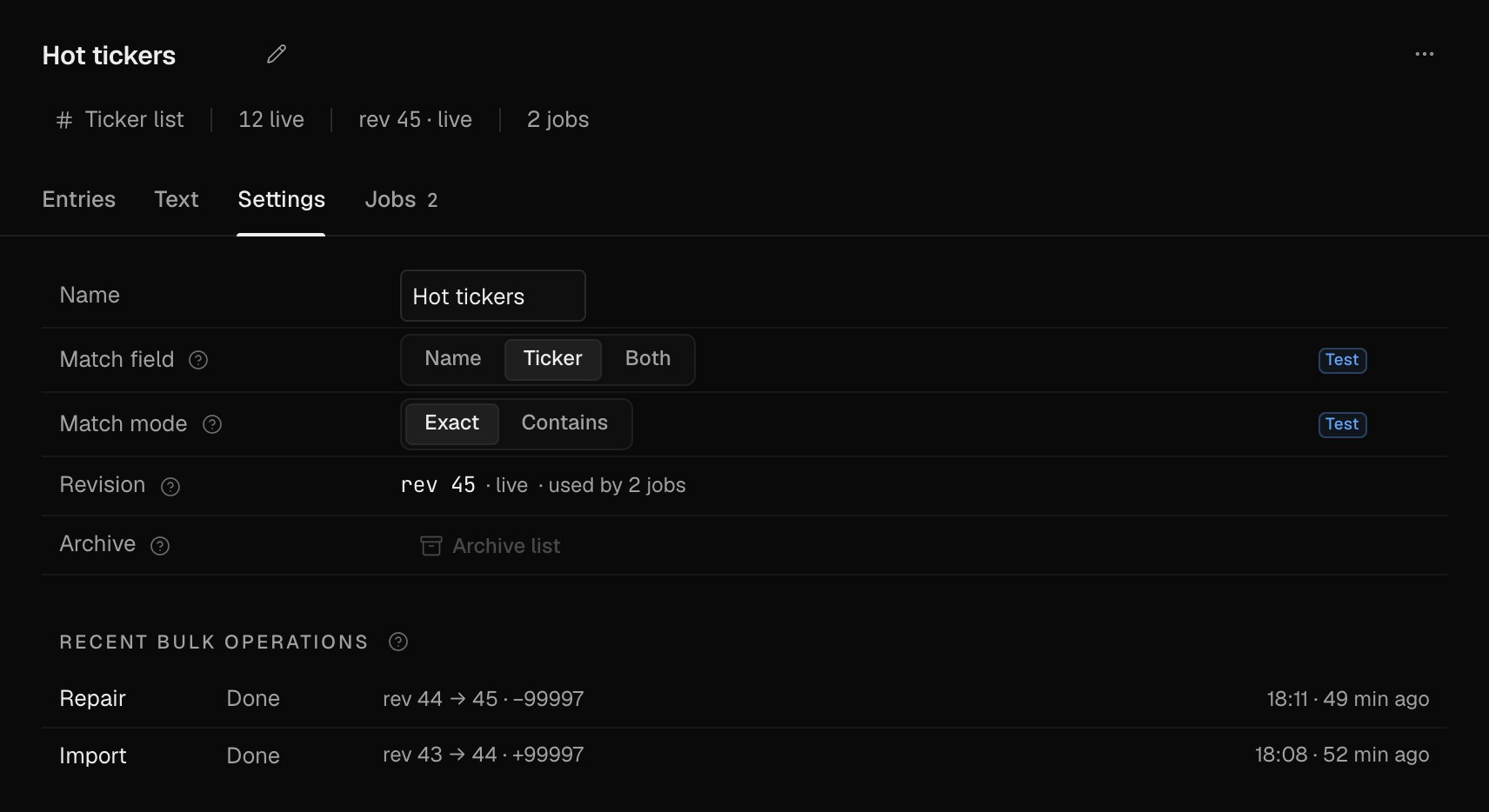
In Settings, List preset, Match field and Match mode carry a Test badge: LaserCat is still testing them on live trading. A list preset with another Buys per dev is structural (about 60 s): it re-counts each dev’s cap.
On a dev snipe list’s Jobs tab, Working copy shows “The list as this job sees it: the devs it removed or banned, and why”. The list itself stays as it is, and Restore there puts a dev back for that job only.
“Every write — an entry, an import, a rename — is a new revision of the list.” When the newest revision isn’t simply live, the list shows a tag. See List statuses.
Ticker match
A ticker list compares its tickers with part of each token. Set this when you create the list, or later in its Settings:
“Both compare trimmed text, ASCII case ignored.” A new ticker list starts at Ticker and Exact. The left pane’s Match column shows the setting, such as “ticker · exact”.
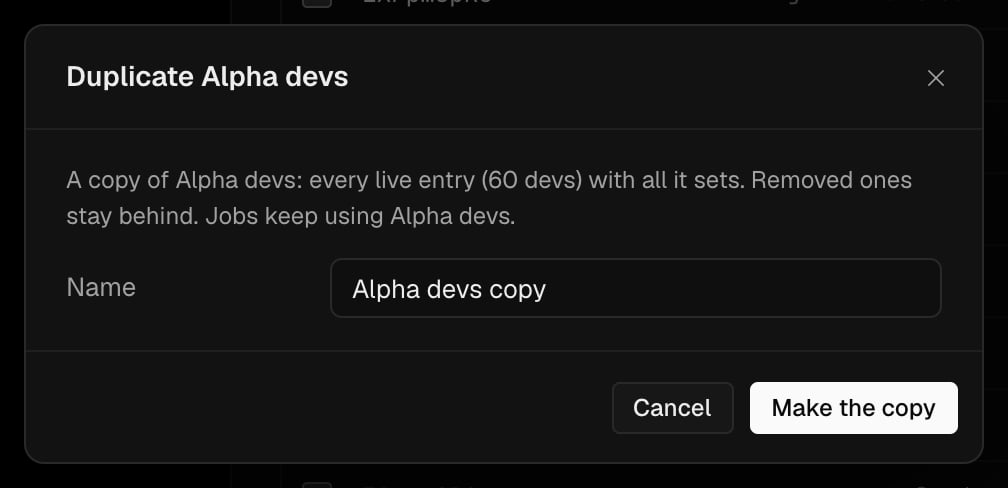
Duplicate a list
Traders and Space Admins duplicate lists.
- An archived preset doesn’t go to the copy: the panel says so, such as “1 entry lost its archived preset”.
- If the list keeps changing while it is copied, nothing is made: “try again in a moment.”
- If no answer comes, don’t send it again: the copy may still be on its way. Press Look again to find it among your lists.
Archive a list
Open the list’s ⋯ menu and choose Archive…, or press Archive list in its Settings: “An archived list is kept, read-only, and leaves this page. Archiving cannot be undone.” A list a job uses can’t be archived: remove it from those jobs first. In the Classic layout, tick several lists and press Archive… in the bar: lists that jobs use stay.Next
List entries
Add and edit entries, and set a dev’s own settings.
Import and export
Paste in bulk, Replace list, and line formats.