

Export to JSON
Open the job’s ⋯ (More job actions at the top of the job, or the job page’s ⋯ in the Classic layout) and choose Export to JSON. Every role can export, an archived job too. The file holds:- the job’s settings;
- every list the job names (its dev snipe lists, its Ticker/name whitelist and Ticker/name blacklist lists, its Blocked devs), each with its own settings and live entries;
- for each dev of its dev snipe lists, what the dev gets in force and from where, to read;
- the presets and global settings they use, to read.
Edit the file
The file starts with a note on how to edit it. In short:- Edit the job’s settings under
"job", each list’s own settings under"lists[].list", and its entries under"lists[].entries". _id,kind,revision, andversionare read-only, and so are each entry’s"effective"(what the dev gets in force),"presets", and"globalSettings". To change what a dev gets, edit the entry’s own field, its preset, or the job.- Amounts are strings:
"lamports"(1 SOL ="1000000000"),"usd"in millionths of a dollar ($1 ="1000000"). Shares are basis points: 100 = 1%.nullclears an entry’s own setting, so the next layer gives it (its preset, the list’s preset, the job). - An entry left out of its list is removed from the list; an entry without
"version"is added. A list left out of"lists"is not changed.
Import from JSON
Trader or Space Admin, on a job that is not archived. Only a Space Admin may change Auto reset and Active hours in the file.
1
Open the import
In the same job’s ⋯, choose Import from JSON…. A file is for the job it was exported from: another job’s file is refused. If the job has unsaved edits in its editor, discard them first: the import never mixes with them.
2
Choose the file
Drop the
.json file in the window, or press Choose file…. The whole file is checked against the job, its lists, and its presets as they are now.3
Read the result
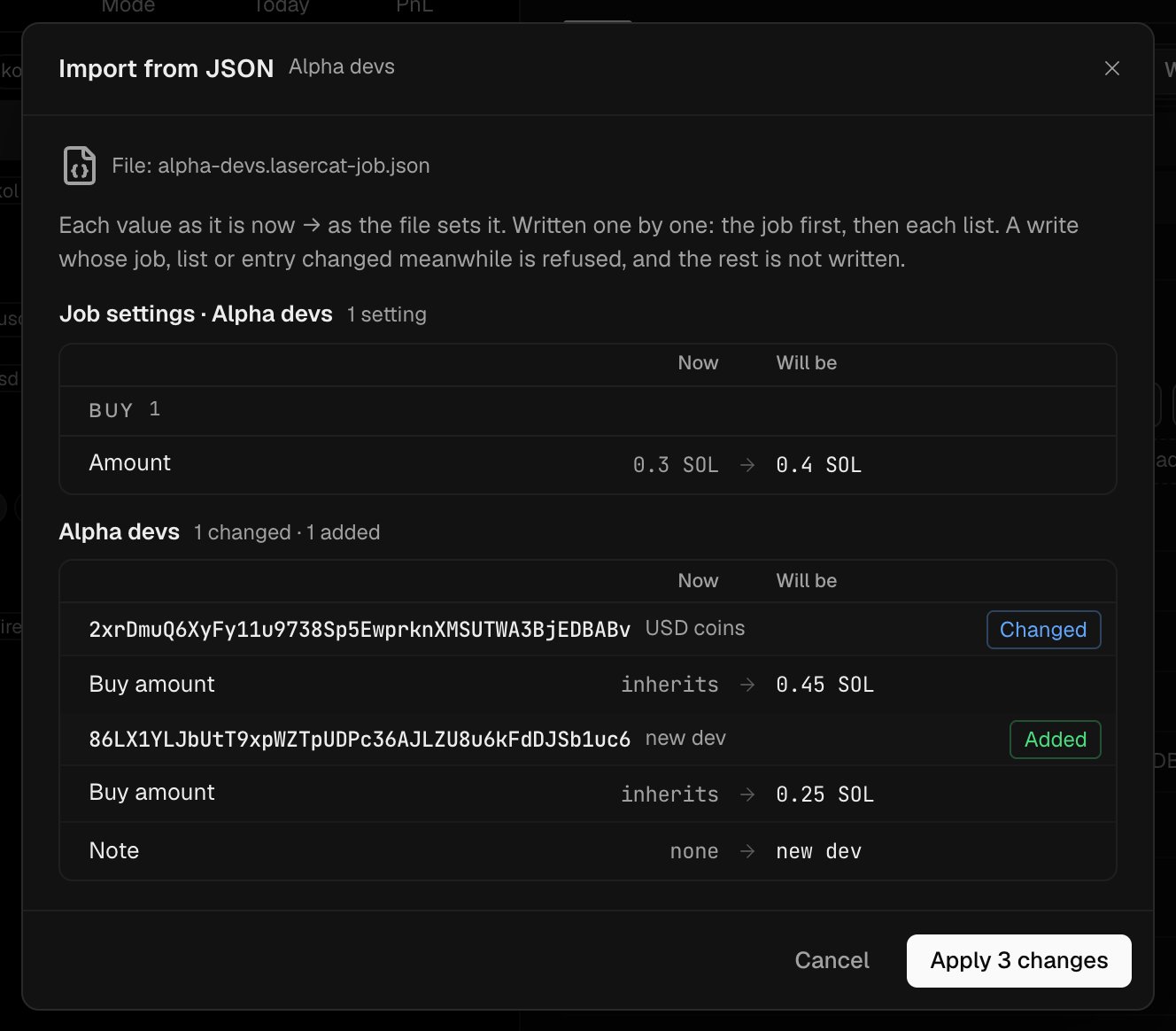
Either the file can’t be imported, with every problem at its place (“Nothing was changed. Fix the file and choose it again.”); or “No changes: the file matches the job and its lists as they are.”; or Review: N changes, each value as it is now → as the file sets it, grouped by the job’s settings, each list’s settings, and its entries Added, Removed, and Changed.
4
Apply
Press Apply N changes. The changes are written one by one: the job first, then each list. Keep the window open until it is done.
Next
Import and export lists
Paste, replace, and export a list’s entries.
Saving changes
How each change applies, and the Saves tray.