

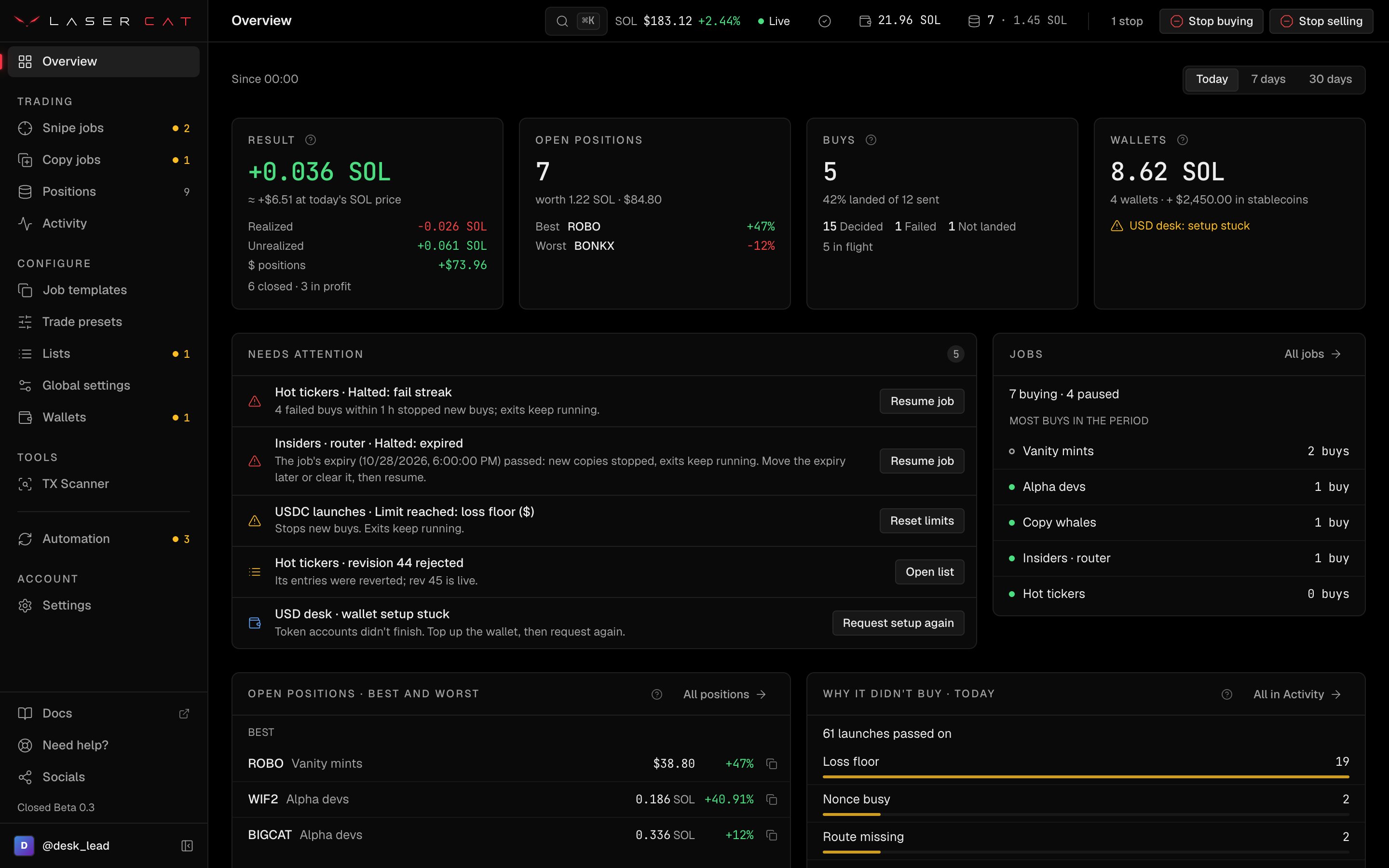
Sidebar
If you belong to several owners, the top of the sidebar is the Owner switcher: it shows the owner you work in. With one owner it isn’t there. The pages follow, in groups:- Overview: how the owner is doing over Today, 7 days or 30 days: the result, open positions, buys and wallets, then what needs you now, your jobs by buys, the best and worst open positions, why it didn’t buy today, the recent buys and sells, and the engine.
- Trading
- Snipe jobs: every Snipe and Snipe LP job, with its editor.
- Copy jobs: jobs that copy other wallets’ trades. See Copy jobs.
- Positions: open and closed positions, with their exits and trades.
- Activity: buys, skips, sells, and your actions as they happen. Clear feed hides what happened until now, for you alone; nothing is deleted. See Activity.
- Configure
- Job templates: settings a job starts from, and applying them to linked jobs.
- Trade presets: settings that lists and list entries lay over a job.
- Lists: dev snipe lists, copy lists, ticker lists, and dev blocklists.
- Global settings: slippage, fees and the route, set once for every job that follows them. See Global settings.
- Wallets: wallets, balances, and setup; wrap, unwrap, and withdraw.
- Tools
- TX Scanner: how an entry went, and which setting to change. See TX Scanner.
- Automation: what the system changed by itself: halted jobs, limits, removed and banned devs. Only Space Admins see it.
- Account
- Settings: your owner, and this browser’s language, theme, layout and trade notifications.
Top bar

- The page’s name and a short summary beside it, for example the job count (“8”) on Snipe jobs, “5 open” on Positions, and the view open on Activity.
- Jump to… (⌘K): type a page, a job, a list, or a setting, and go there.
- SOL: the SOL price and its change in 24 h. It’s for display only: nothing is computed from it. It dims when the price is old.
- The engine’s status, in one word: Live while it works; Paused when it buys nothing for now (exits go on); Offline when it is down; Delayed when no update came for a while, so saved changes may take longer to go live; Connecting while it waits for the first update. Point at it for why; click it for details.
- The saves indicator: Saved when everything you saved is live, N saving while saves are on their way, and a count of rejected saves when one was refused. Click it for Recent saves: see Saving changes.
- The wallets chip: what your active wallets hold, in SOL: their SOL, WSOL and stablecoins together. Click it for Wallets · N: the total, then a line per wallet that opens its balances, and All wallets. When you have no wallets, Traders and Space Admins find Generate wallet there. See Balances.
- The positions chip: how many positions are open and what’s in them. Click it for In positions, Realized so far, and the newest positions.
- The stops in force, such as 2 stops: click it for the list, and resume a stop there. See Stops.
- Stop buying and Stop selling: pick Owner or A wallet (and, to stop selling, A coin), then confirm. A stop applies at once. The button then reads Buying stopped or Selling stopped with Resume, which takes about 10 s.
Viewers can’t stop or resume trading.
Two layouts
Snipe jobs, Copy jobs, Positions, Job templates, Trade presets and Lists come in two layouts. Pick yours in Settings → Interface → Layout:- Classic (the default): page-wide tables, edits in a large window, like the sniper bots you’re used to. Click a row to open its item; the pencil by a name or an amount edits it in the row.
- LaserCat: a list on the left, the settings beside it.
Account menu
The bottom of the sidebar shows your Telegram photo (or your initials) and your username. Click it for your owner and role, the language, What’s new, Settings, Log out, and Log out of all devices.Keyboard shortcuts
On a Mac press ⌘; elsewhere press Ctrl.
Letter keys don’t act while you type in a field. A list shows its shortcuts under it.
On a phone
On a phone, the sidebar gives way to a bar at the bottom: Overview, Snipe jobs, Positions, Activity, and More. More holds the SOL price, the Owner switch when you have several, your wallets’ Balances, the other pages, Need help? (with Docs first), Socials, the Language, the panel’s version (it opens What’s new), Log out, and Log out of all devices. The top bar keeps the page’s name, search, the engine’s status, and the two stop buttons, each an icon over Buying or Selling. The saves indicator shows only while a save is on its way or was rejected. An open item has a back arrow. On a tablet, the sidebar shows icons only, and a list shows either the list or the item you opened.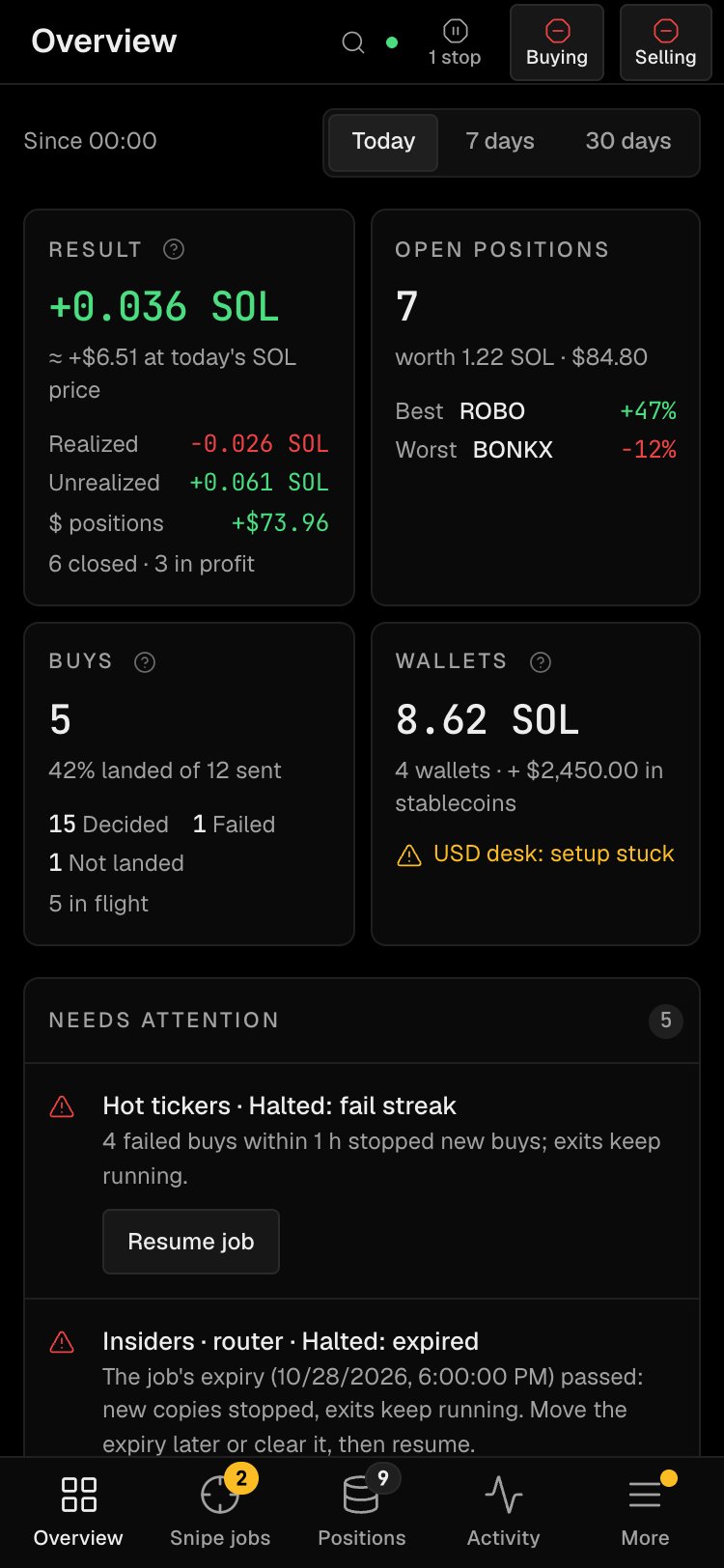
Next
Saving changes
The save bar, Review, and the Saves tray.
Interface settings
Language, theme, and trade notifications.