

The jobs list
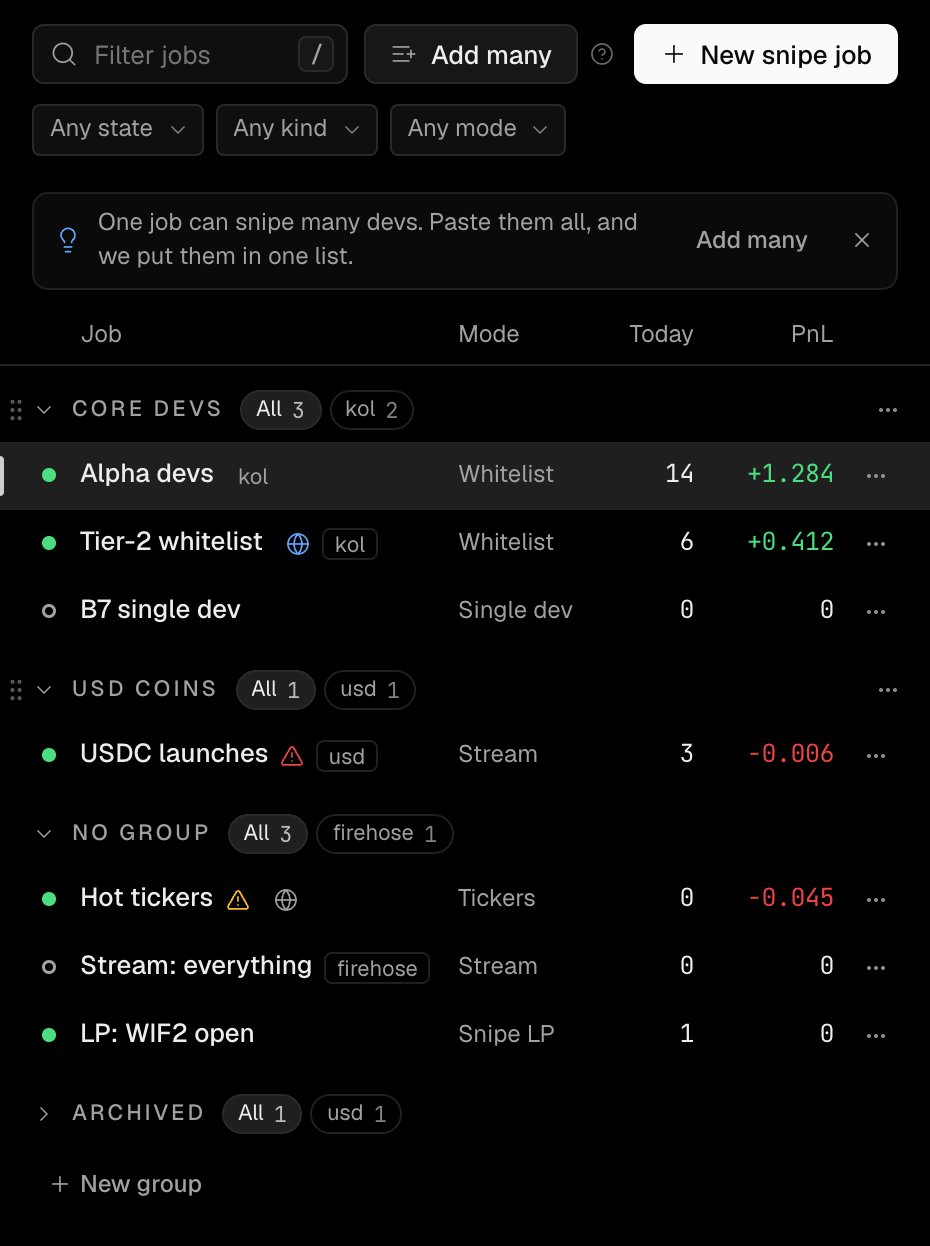
Both layouts share these:- Search: Filter jobs (press /) finds a job by its name, mode, or wallet.
- Filters: Any state, Any kind (Snipe, Snipe LP), and Any mode; each then shows what you picked. Clear resets them.
- Sections: one per task group, in your order, then No group, then Archived. Click a section’s header to fold it. Archived starts folded; its jobs are read-only.
- Global settings mark: after a job’s name, Global when it follows your global settings in every group, or for example Own: buy fees when it keeps some of its own. See Global settings.
- Row menu: a row’s ⋯, or a right-click on it: Rename (LaserCat) or Open and Edit (Classic), Duplicate…, Activate or Pause, Move to group, and Delete job…. A Viewer’s rows and archived jobs have none.
LaserCat layout
- Columns: the state’s dot, Job, Mode, Wallet, Today (buys in the limit window), and PnL (realized PnL in the limit window: SOL, or $ for a job that only trades USD coins). In a narrow window each job takes two lines instead.
- Row icons: on a wide list, a row has a pause or play icon and Duplicate… before its ⋯.
- Marks: a warning sign after a job that needs you, such as Halted: max buys or a rejected save, and a dot for unsaved changes. The Snipe jobs item in the sidebar counts the jobs that need you.
- Keys: J and K move between jobs, 1 to 5 switch the editor’s tabs, ⌘S (Ctrl+S) saves, and ⌘K (Ctrl+K) jumps anywhere.
Classic layout
A table across the page, a row per job. Click a row to open the job’s own page; Edit opens its editor in a large window.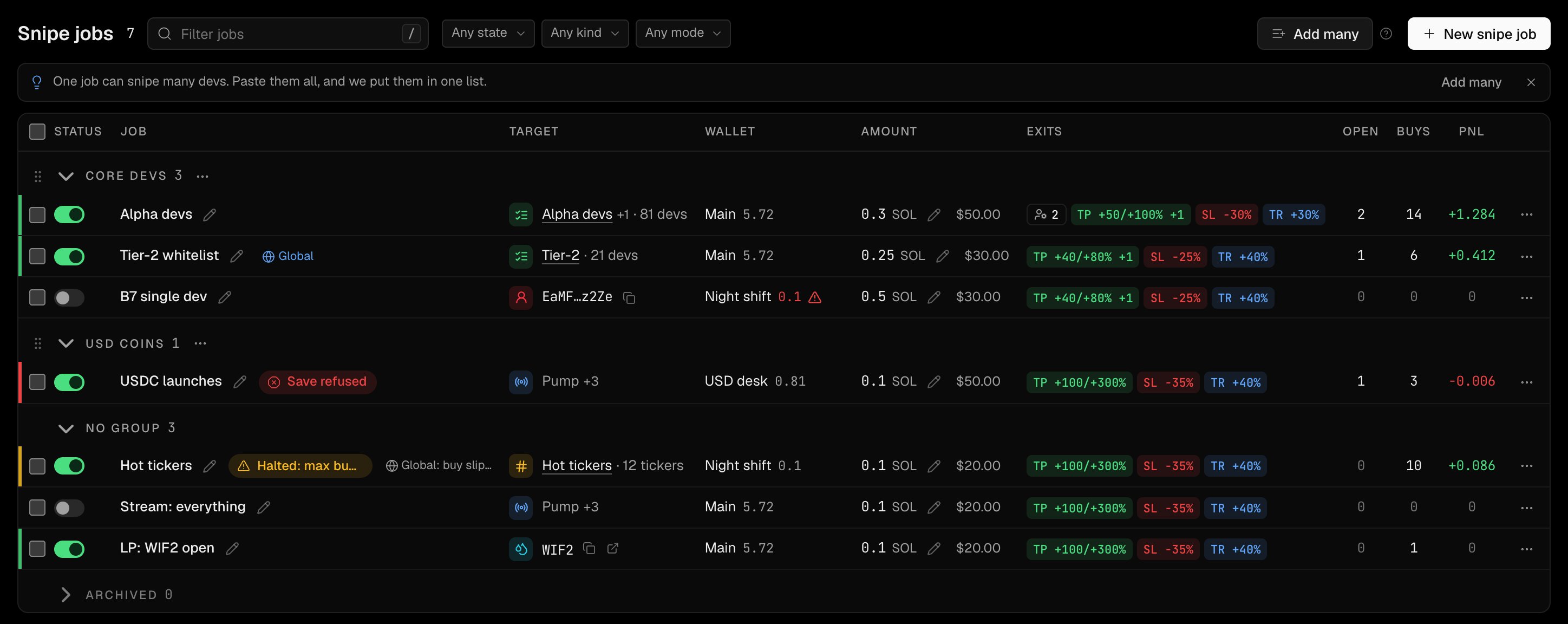
A job that buys from dev snipe lists whose entries set their own settings leads its exits with a mark and a count of
those entries. Its tip says the row’s amount and exits are the job’s, which a dev gets only where neither it nor its
presets set their own; click it to open the first such list on those entries. See Entries.
On a wide table, Edit and Duplicate… sit as icons before a row’s ⋯.
A job’s page shows its state, mode, group, “amount per buy · wallet name”, the switch, Edit, and ⋯. Under them:
PnL, Buys today, and Open positions, then the tabs Positions (its open positions), Decisions, Used
devs, and Dev results: see A job’s devs. Snipe jobs, with its back arrow, returns to the table.
Task groups
Trader or Space Admin. A Viewer has no New group, no group menu, and no way to move jobs: the Task group picker is disabled.
- Create one: New group at the bottom of the list, then a name and Create group.
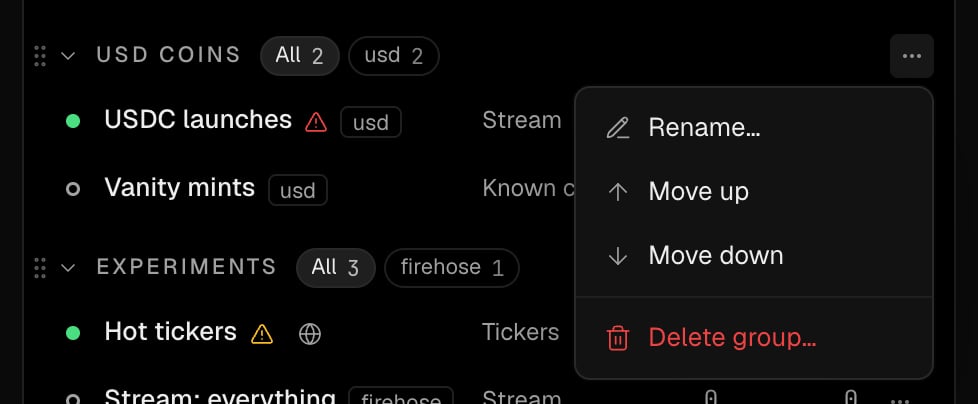
- Group menu (⋯ on its header): Rename…, Move up, Move down, and Delete group….
- Put a job in a group: drag its row into the group, use the Task group picker at the top of the job, ⋯ → Move to group on the job, or select jobs and use Move to….
- Reorder groups: drag a group by its grip (⋮⋮) beside its name; a line shows where it lands. From the keyboard, Alt+↑ / Alt+↓ on the grip, or Move up / Move down in its menu.
Labels
In the LaserCat layout, a job’s labels show as small chips after its name.- Each group’s header lists All and its jobs’ labels, each with a count. Click a label to show only its jobs in that group; click it again, or All, to show every job. One label at a time per group.
- Past 8 labels, +N opens the rest and Less folds them again.
- The pick stays while you open other jobs.
Bulk actions
Trader or Space Admin. A Viewer has no checkboxes.
1
Select jobs
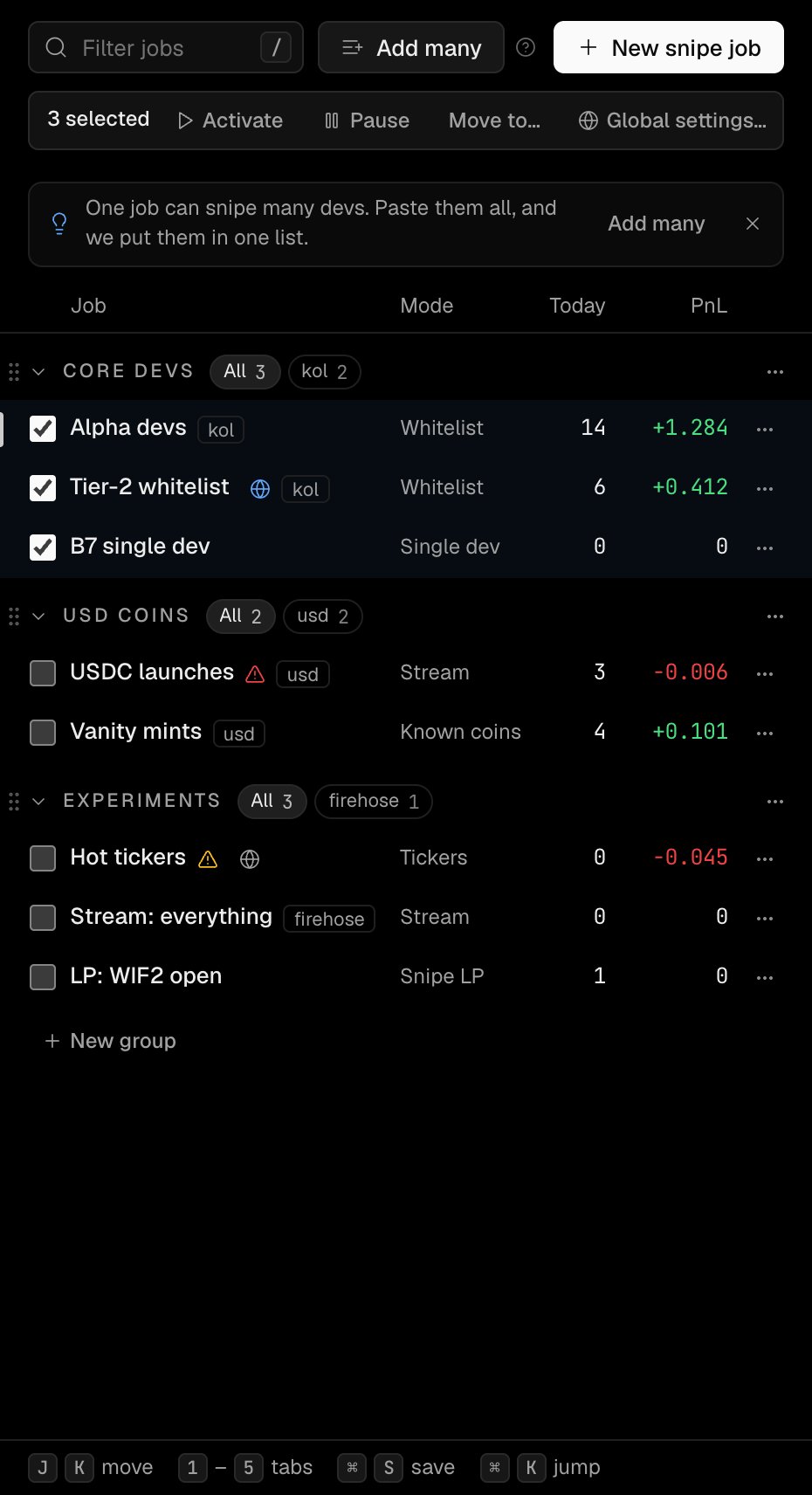
Tick the box by each job. In the LaserCat layout, ⌘-click or Ctrl-click a job to add it, Shift-click picks a range, and in a narrow window you tap a job’s dot. Archived jobs cannot be selected.
2
Pick an action
The bar shows how many are selected, with Activate, Pause, Move to…, and, once your owner has global settings, Global settings… (see Global settings). In the Classic layout the bar sits at the foot of the page and adds Delete…. The ✕, or Esc in the Classic layout, clears the selection.
3
Read the result
A message sums it up, for example “3 jobs → Paused · applied”. If some jobs did not switch, a callout says “State: not every job switched.” with each job and why: “changed meanwhile” or “refused”. Retry conflicts tries the changed ones again.
The template link
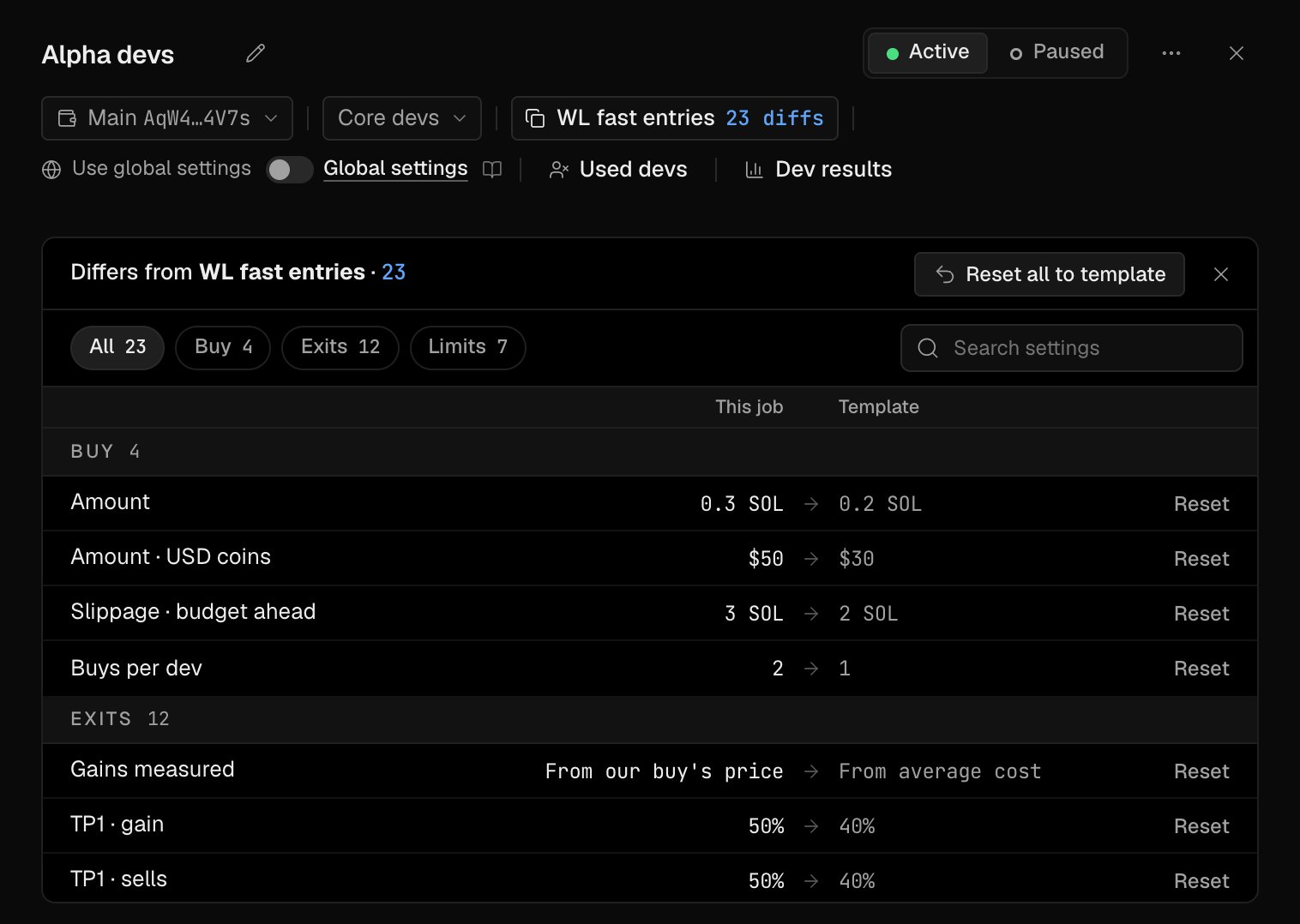
A Snipe job made from a template shows a link at the top of its editor: the template’s name and in sync or the number of diffs.- Hover it. For a template named Core, it reads In sync with Core (“Every templated setting matches.”), or for example 3 settings differ from Core, with the count per tab: “Compare row by row, reset one or all.”
- Click it to open the differences panel, for example “Differs from Core · 3”: chips per tab, a search, and each setting with the job’s value and the template’s.
- Reset sets one setting to the template’s value; Reset all to template sets them all. A reset row stays crossed out, with Undo, until you save. Then save the job as usual. A Viewer sees the differences without Reset buttons.
Next
Templates
Keep settings in one place and apply them to jobs.
Job states
What each state does and how long a switch takes.