

Traders and Space Admins add wallets. Viewers can’t: “Viewers can’t add wallets.”
Generate or import
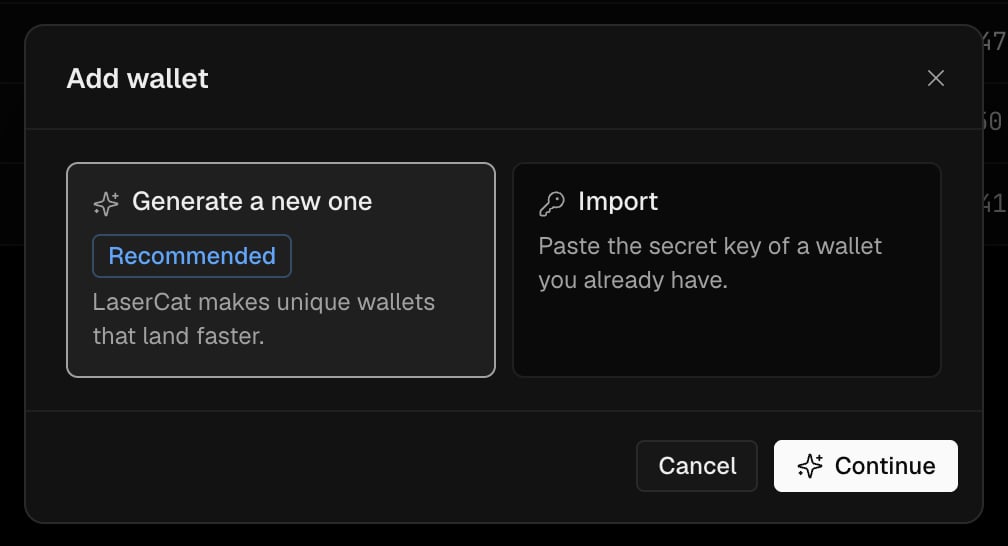
Open Wallets and press Add wallet. The Add wallet dialog offers two choices:- Generate a new one, marked Recommended and picked by default: “LaserCat makes unique wallets that land faster.”
- Import: “Paste the secret key of a wallet you already have.”
The Optimized badge
A generated wallet wears the Optimized badge beside its label, on the Wallets page and in the dialog. Its tooltip reads: “LaserCat makes unique wallets that land faster.” When you import a key whose wallet isn’t optimized, the dialog says “This wallet isn’t optimized.” and offers Generate a new one. You can still add the imported wallet. To move jobs off such a wallet later, see Move jobs.Save the secret key
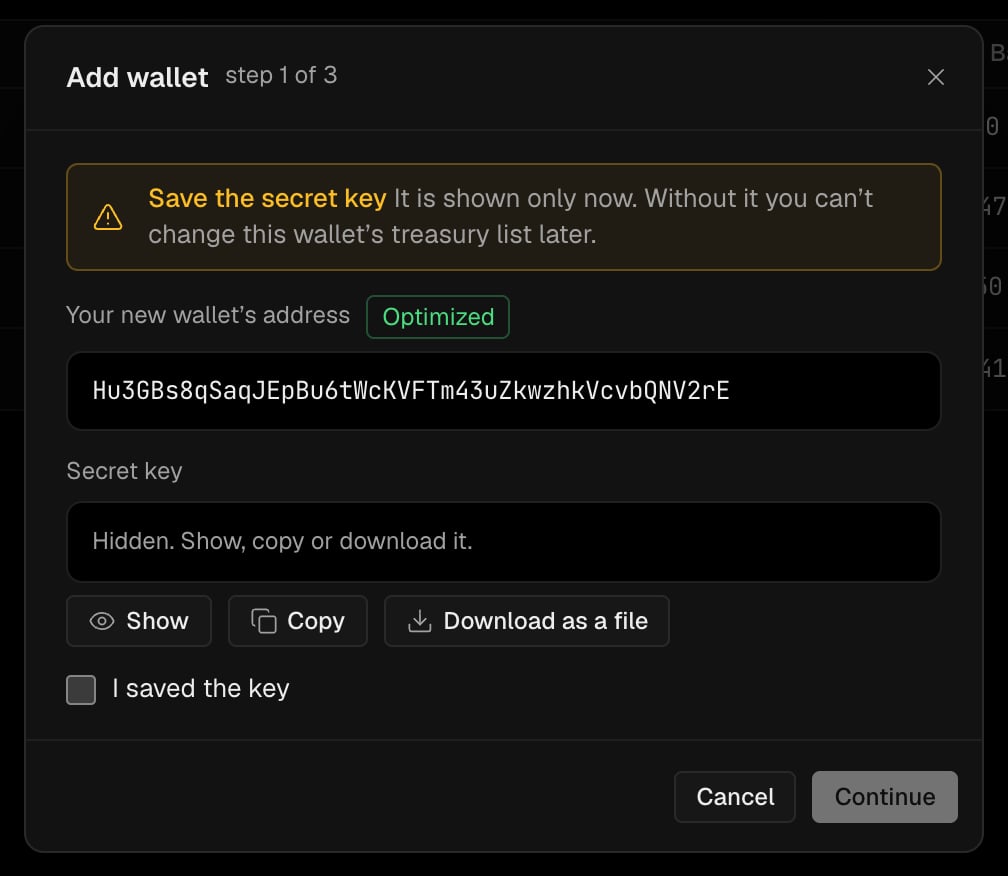
A generated wallet’s key is shown once, on the first step. The dialog says Save the secret key: “It is shown only now. Without it you can’t change this wallet’s treasury list later.” Under Your new wallet’s address, the Secret key stays hidden until you ask for it:- Show displays the key, and Hide hides it again.
- Copy puts it on the clipboard. If the browser blocks that, the panel says “This browser won’t copy it. Show the key, or download it as a file.”
- Download as a file saves
lasercat-wallet-<address>.txt, with the wallet’s address in the name. The file holds the key as base58 text, the form Import takes.
Import a key
Paste the key into Secret key: “Base58, or the Solana CLI file’s [..] array. Never stored, never logged.” Seed phrases are not supported. The field sits on the same step as the wallet’s settings (below). The key is read when you press Continue (or Enter in the field), and the confirmation opens at once. If you go Back, or a field needs fixing first, the step shows Key read and the wallet’s address instead; Use another key lets you paste a different one.Name and set up the wallet
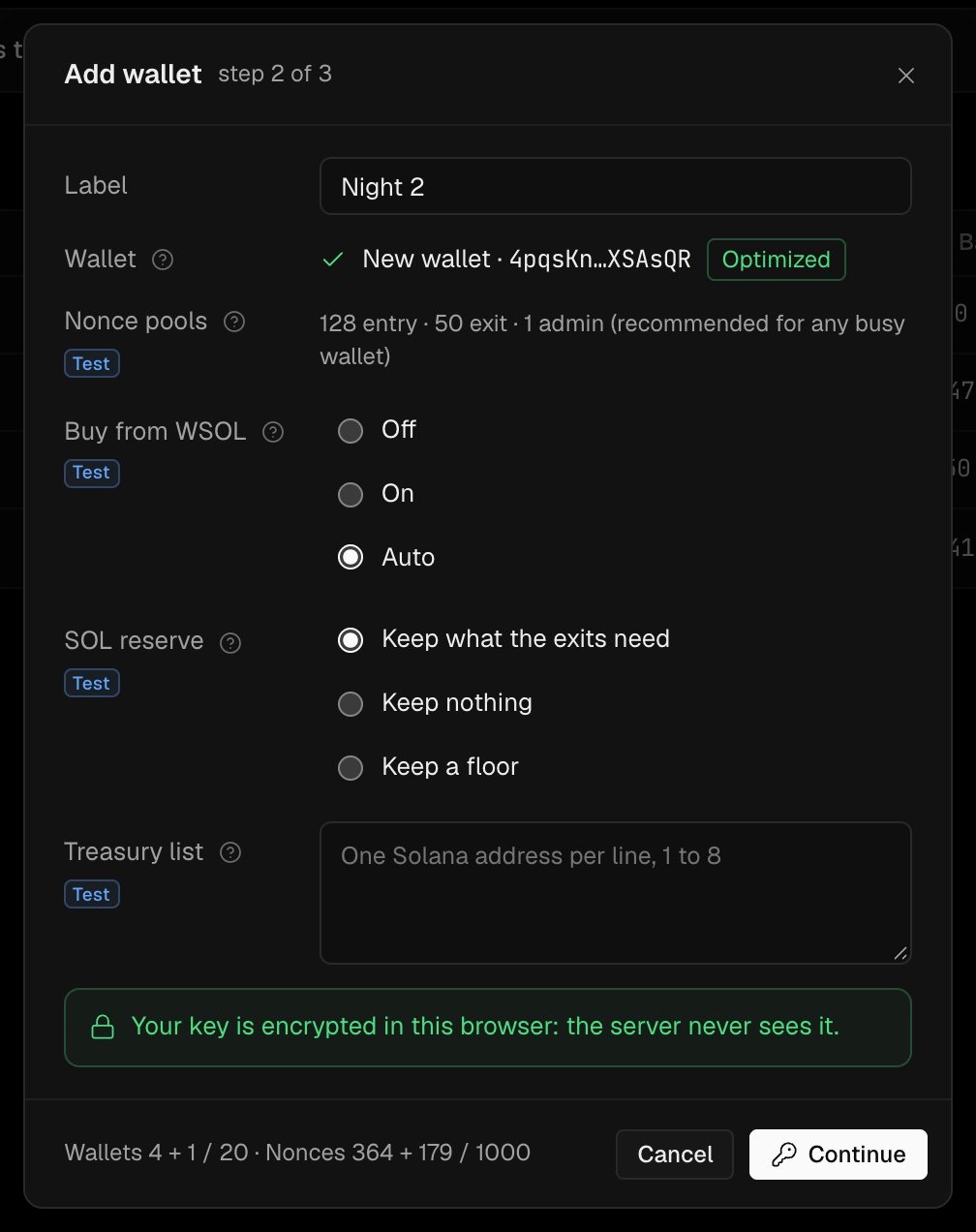
The next step holds the wallet’s settings (for an import, the step with Secret key). Each field’s ? explains it:
The footer shows the owner’s wallets and nonces with this wallet added, such as “Wallets 4 + 1 / 20 · Nonces 716 + 179 / 1000”. Press Continue.
The new wallet must fit the owner’s limits, and Continue says why when it doesn’t:
- All the owner’s wallets are in use: “The owner has 20 of its 20 wallets: archive one first.”
- The owner’s nonces have no room for another wallet with full pools, such as “No room for another wallet with full pools: it needs 179 nonces, 105 are left of 1000.” The pools never get smaller. LaserCat can raise the owner’s nonce limit: write to the LaserCat team.
Confirm and add
The last step shows the full address under Your new wallet’s address (for an import, Is this your address?), the pools, the Buy from WSOL choice, and the reserve if you changed it. With a treasury list, it shows every address: “Signed in this order as treasury list version 1, with this wallet’s key. Check every character.” Press Yes, sign and add. The panel shows each step as it signs and adds the wallet. If a step fails, it says what went wrong and whether anything was sent.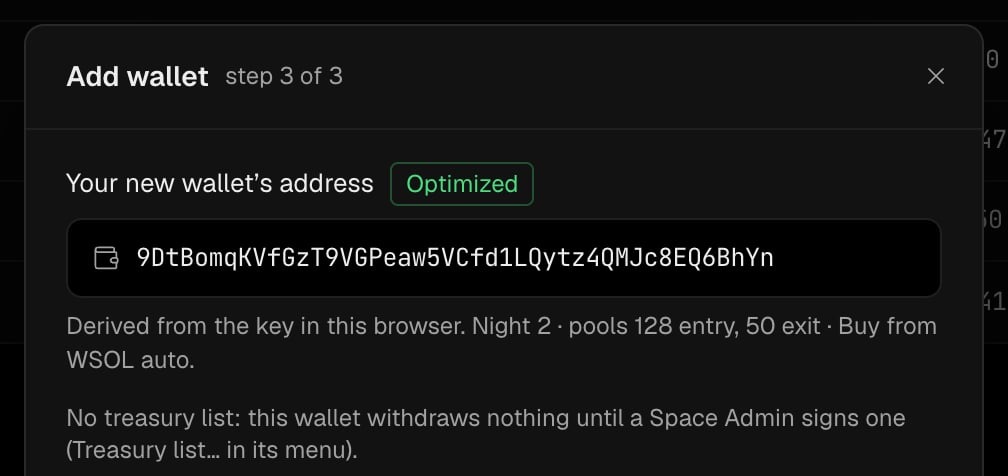
What happens next
Send SOL to the new wallet’s address: its buys, its fees, and the rent its nonces hold all come from its SOL. Until it holds enough to start, the wallet reads Waiting for a top-up, and its tooltip says what to send: “Its setup starts once the wallet holds 0.00171188 SOL. About 0.2 SOL covers its 178 nonces and setup: send that first.” Then it reads Setting up… while LaserCat prepares it, and Ready once it is done. If setup gets stuck, the page asks you to top up the wallet and request setup again. See Wallet states. If you generated the wallet while jobs run on wallets that aren’t optimized, the dialog ends with Move jobs: “It is being set up. 3 jobs run on wallets that aren’t optimized: move them here once the setup is done.”Next
Balances
SOL, WSOL and dollars, Buy from WSOL, and the SOL reserve.
Wallet states
Waiting for a top-up, Setting up, Ready, Revoked, Archived, and nonce pools.
Treasury list and funds
Where a wallet may withdraw, and Move funds.
Move jobs
Move jobs to an optimized wallet.